Best practices for Claude Code separate developers who ship clean code from those who fight the tool all day. The context window fills fast, and performance drops as it fills. These best practices help you manage context, verify work automatically, and build habits that make every session more productive.
Best Practices: What You’ll Learn
This guide covers the best practices that Anthropic engineers use daily with Claude Code, drawn from real production usage. You will learn how to manage the context window, set up verification gates, configure your environment, and scale across sessions.
The Context Window Is Your Most Precious Resource
The single biggest factor in Claude Code performance is the context window, and most best practices in this guide revolve around keeping it lean. Claude’s working memory is finite, and as the window fills with code, conversation, and tool outputs, performance degrades.
Think of it like a desk: a clean desk lets you focus, while a cluttered one slows everything down. Relevance matters as much as size, so a window full of stale exploration and failed attempts is toxic even when it is not full.
Watch Claude’s responses for signals that the window is too full, such as forgetting earlier points, missing obvious connections, or producing generic output. When you see these it is time to /clear or /compact, and slowing turns without added complexity usually mean the same thing. Clearing the session often restores the speed you saw at the start.
Give Claude a Way to Verify Its Work
Claude has a natural tendency to stop when work looks done. It writes a function, sees the code on screen, and considers the task complete. But looking done and being done are different things, and the function might have a syntax error, a missing import, or a logic bug that only a test can catch.
The fix is to give Claude a verification check that returns pass or fail. Instead of hoping the code works, you create a feedback loop where Claude self-iterates until the check passes, and these verification best practices turn Claude from a code generator into one that tests its own output.
There are four levels of verification gating, each more robust than the last. Level one happens in a single prompt: instead of “implement a function that validates email addresses,” you say “write a validateEmail function. Example test cases: user@example.com is true, invalid is false. Run the tests after implementing.”
Level two spans an entire session. You set the check as a goal condition using the /goal command, and Claude keeps working until that goal is met, running checks along the way.
Level three is a deterministic gate. You configure a Stop hook that runs your check as a script, blocking the turn from completing until the check passes. Claude Code overrides this after 8 consecutive blocks, so it cannot loop forever, making it the most reliable form of verification because it does not depend on Claude remembering to check.
Level four brings in a second opinion via a verification subagent or dynamic workflow that reviews the work independently. This catches issues the original session is blind to, which matters most on critical code paths.
A concrete example: you ask Claude to add input validation to a registration endpoint. Without a check, it writes the code, declares the task done, and misses edge cases like Unicode usernames or a regex that rejects valid emails. With a check, Claude writes tests for valid emails, invalid emails, and edge cases, then iterates until they pass.
Explore First, Then Plan, Then Code
A common mistake is jumping straight into implementation. Developers describe what they want, Claude starts writing code, and twenty minutes later nothing works because nobody understood the codebase first. These planning best practices prevent this.
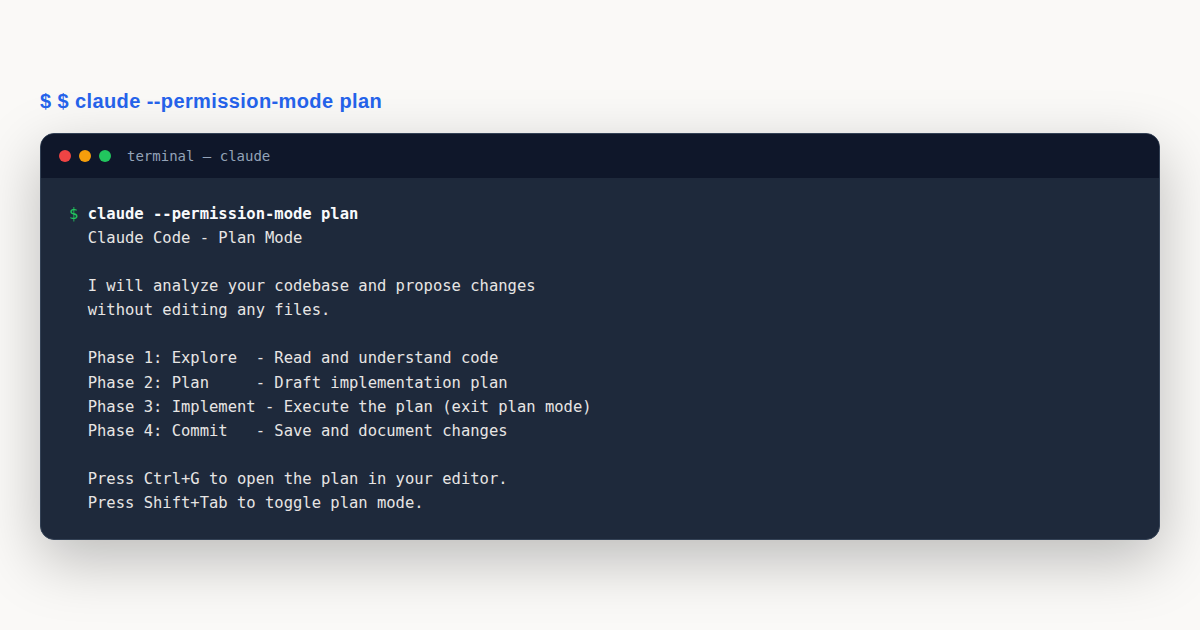
Phase one is exploration. You enter plan mode and let Claude read files, trace dependencies, and build a mental model of the codebase without making changes. This is where Claude learns your project’s patterns and architecture.
Phase two is planning. Still in plan mode, Claude creates an implementation plan you can open with Ctrl+G, review, and adjust. A good plan lists which files change, what functions are added, and how the pieces fit together, letting you catch misunderstandings before any code is written.
Phase three is implementation. You exit plan mode and Claude executes the plan, and because exploration and planning already filled the context with relevant information, implementation tends to go smoothly.
Phase four is committing. You save the work with a descriptive commit message, clearing the slate for the next task.
Not every task needs all four phases. Typo fixes, log line changes, and variable renames can skip straight to implementation, while planning is for multi-file changes, unfamiliar code, or anything with architectural implications. When in doubt, plan.
A related mistake is letting the plan grow too detailed. A good plan is a roadmap, not a script; it lists which files change and the high-level approach, not every line of code, so Claude treats it as a guide rather than a rigid constraint. Keep plans at the level of “add a resetToken model, create a POST endpoint at /api/reset, send an email with a token link.”
Another mistake is skipping the review step. After Claude generates a plan, always read it and check whether it touches the right files and follows your project’s patterns. Catching a planning error takes thirty seconds, while catching the implementation error it causes takes thirty minutes.
Provide Specific Context in Your Prompts
Vague prompts produce vague results. Making your prompts specific is one of the simplest best practices you can adopt, and four strategies consistently improve output quality.
Strategy one is scoping the task. Instead of “write tests,” say “write a test for foo.py covering the edge case where the user is logged out. Avoid mocks.” The scoped version tells Claude exactly what to test and what constraints to respect, so it does not have to guess.
Strategy two is pointing to sources. Instead of “explain the API,” say “look through ExecutionFactory’s git history and summarize how its api came to be.” Claude reads the log and gives a grounded answer based on actual history rather than speculation.
Strategy three is referencing existing patterns. Instead of “create a widget,” say “look at how existing widgets are implemented. HotDogWidget.php is a good example.” Claude reads the example, extracts the pattern, and follows it, producing code that fits your codebase instead of generic boilerplate.
Strategy four is describing the symptom. Instead of “fix the login bug,” say “users report that login fails after session timeout. Check the auth flow in src/auth/.” You give Claude the symptom and a starting location, and it traces the issue from there.
All four strategies share a common thread: they reduce ambiguity. Specific context is not about writing longer prompts but about writing prompts that leave no room for misinterpretation.
The cost of a vague prompt is the entire correction cycle that follows. Each correction fills the context window with failed attempts, so by the time you get a good response the context is polluted. A specific prompt gets it right the first time and keeps the context clean.
Configure Your Environment with CLAUDE.md
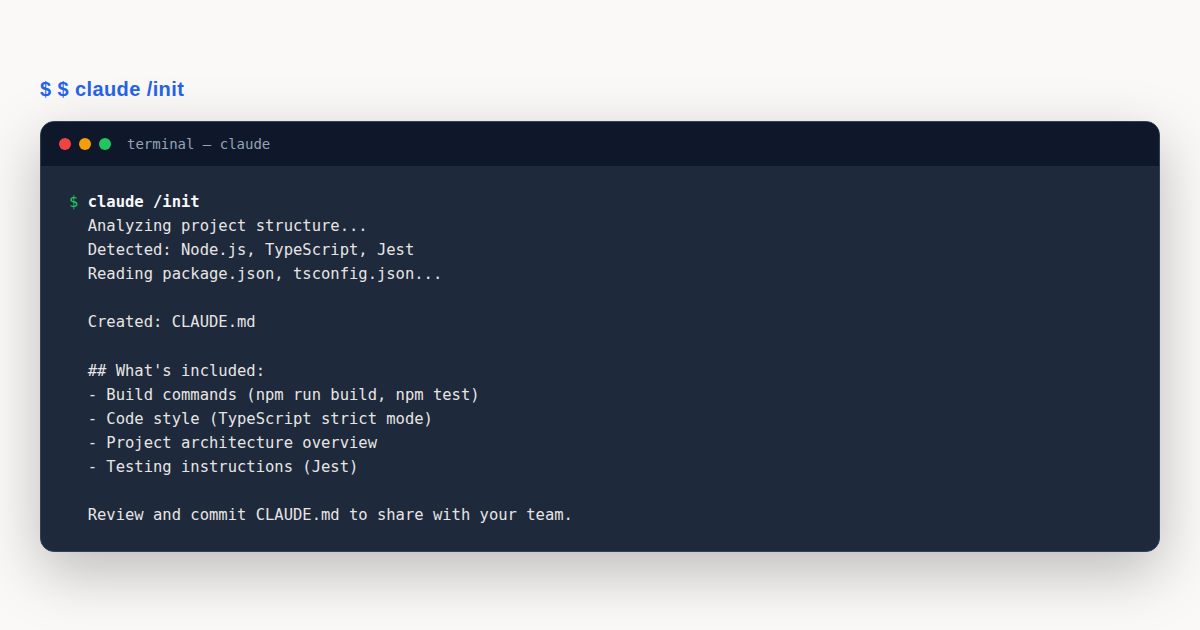
CLAUDE.md is a file Claude Code loads at the start of every session, acting as a persistent instruction sheet about your project, conventions, and preferences. Writing a good CLAUDE.md is one of the highest-impact best practices you can adopt.
Run /init in your project root to generate a starter file. Claude will analyze your codebase and produce a reasonable first draft. From there, you edit and prune until the file contains only broadly useful information.
What to Include in CLAUDE.md
The file should contain things Claude cannot figure out by reading code. This includes bash commands specific to your project, code style rules that differ from defaults, testing instructions, repository etiquette, and architectural decisions that are not obvious from the code structure.
| Include in CLAUDE.md | Exclude from CLAUDE.md |
|---|---|
| Bash commands Claude cannot guess (build, deploy, test runners) | Anything Claude can figure out by reading code |
| Code style rules that differ from defaults | Standard conventions (PEP 8, ESLint defaults) |
| Testing instructions and commands | Detailed API docs (link to them instead) |
| Repository etiquette (branch naming, PR process) | Info that changes frequently (current sprint tasks) |
| Architectural decisions and their rationale | Temporary state (in-progress refactors) |
One trick that improves adherence: add the words IMPORTANT or YOU MUST before critical instructions. Claude gives these phrases extra weight and is more likely to follow them, so “YOU MUST run npm test before considering any task complete” is stronger than “run npm test before finishing.”
The biggest mistake is overloading it. Every line consumes context window space on every session, so including things Claude could figure out by reading code wastes context for no benefit. A lean CLAUDE.md is a good CLAUDE.md.
See the official best practices documentation from Anthropic for the complete reference on configuring your environment. It complements the guidance above with Anthropic’s own examples.
CLAUDE.md should evolve with your project. Add a line when Claude repeatedly makes the same mistake, remove a line Claude never needs, and review the file every few weeks to ask whether each line still earns its place.
For monorepos, you can place CLAUDE.md files in subdirectories. Claude Code reads the root file plus any CLAUDE.md in the current working directory, so you can keep project-wide rules in the root and module-specific instructions nested beneath.
Configure Permissions to Reduce Interruptions
Nothing breaks your flow like a permission prompt in the middle of a complex task. Claude Code asks for permission before running commands that could modify your system. This is safe by design, but it gets annoying fast when you keep approving the same commands.
Three settings reduce permission interruptions. Using them well is one of the best practices that separates new users from experienced ones.
Option one is auto mode. A classifier evaluates each command and blocks only the risky ones, so safe commands like ls, cat, and git status run without prompts while commands that delete files or push to remotes still ask. It is a good default for most developers.
Option two is permission allowlists. You explicitly permit specific tools and commands, allowing npm run lint and git commit without prompts while everything else still asks. This gives fine-grained control over what runs automatically.
Option three is sandboxing. Claude Code runs inside an OS-level isolation layer that prevents it from touching anything outside the sandbox. This is the most secure option and is useful for untrusted codebases or CI environments.
The right configuration depends on your risk tolerance. Auto mode is usually fine for personal projects where you trust the codebase and the cost of an unwanted command is low. For production codebases, shared repositories, or CI pipelines, use allowlists and only permit commands you have reviewed. Sandboxing is the right choice for code you did not write, such as open-source contributions or contractor deliverables.
Use CLI Tools and MCP Servers
Claude Code can call CLI tools directly, which is one of the most context-efficient best practices available. Instead of reading documentation into the window, Claude runs a command and gets the answer in a compact response.
Tools like gh, aws, gcloud, and sentry-cli are especially useful. Claude can run gh pr list to see open pull requests, aws s3 ls to check S3 buckets, or sentry-cli issues list to find production errors, and each command returns structured data that takes far less context than reading the equivalent web interface.
Claude can also learn unknown CLI tools. If you have a custom tool, just tell Claude about it:
Use 'foo-cli-tool --help' to learn about foo tool.Claude will run the help command, read the output, and figure out how to use the tool. This works for any well-documented CLI.
MCP (Model Context Protocol) servers extend Claude Code with additional capabilities, connected with the claude mcp add command. They can provide database access, API integrations, and file system tools, giving Claude domain-specific abilities without bloating the context window.
Common MCP use cases include a PostgreSQL database for queries, Jira or Linear for issue tracking, or a cloud provider API for infrastructure management. Each server runs as a separate process, so it does not consume the context window until Claude calls it, giving on-demand access without the overhead of loading documentation.
Set Up Hooks for Deterministic Automation
CLAUDE.md is advisory. Claude reads it and tries to follow the instructions, but it might forget or skip them. Hooks are different: they are deterministic scripts that run every single time, regardless of what Claude decides to do.
Hooks are one of the best practices for enforcing rules that must never be skipped. If you want eslint to run after every file edit or tests before every commit, a hook guarantees it.
Claude can write hooks for you. Just ask:
Write a hook that runs eslint after every file edit.Claude will generate the hook script and show you where to put it. Hooks live in .claude/settings.json, and you can also run /hooks in Claude Code to browse existing hooks and see what they do.
The key difference between hooks and CLAUDE.md instructions is reliability. A CLAUDE.md instruction that says “run eslint after edits” might be followed 90% of the time, but a hook that runs eslint after edits is followed 100% of the time, so for critical checks always use hooks.
Hooks shine in team settings. You cannot guarantee every developer follows CLAUDE.md perfectly, but hooks in the shared .claude/settings.json file run for everyone, enforcing project standards without relying on individual discipline.
Create Skills and Custom Subagents
Two advanced best practices involve creating reusable components: skills and subagents. Both let you codify workflows so you do not reinvent them every session.
Skills
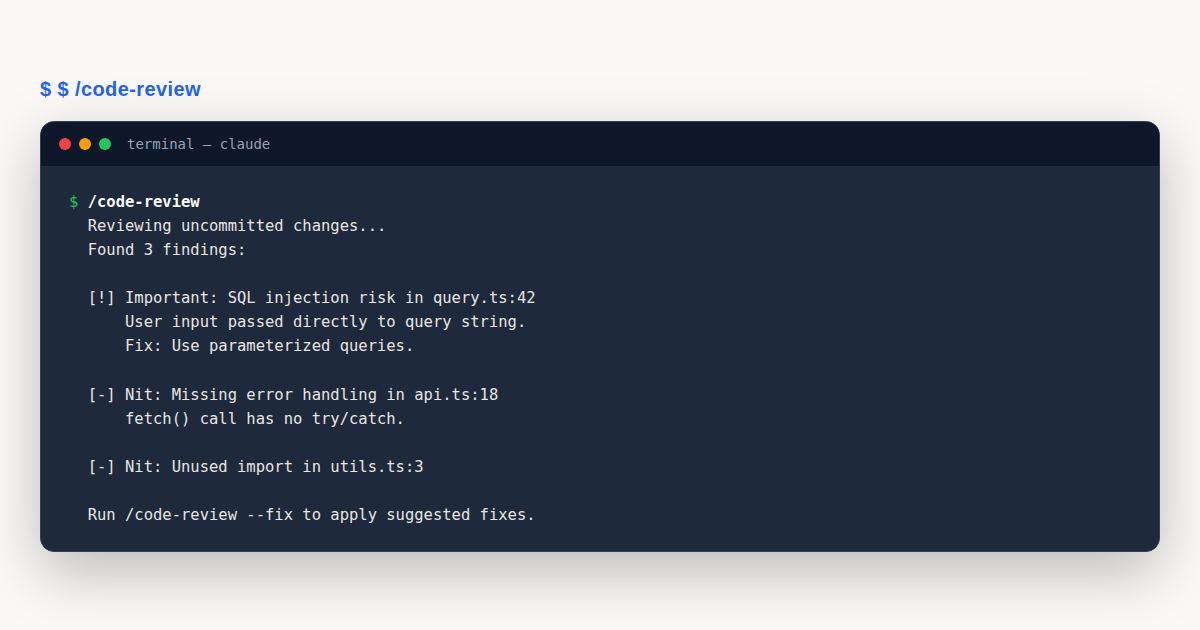
Skills are SKILL.md files that live in .claude/skills/. Each file describes a workflow that Claude can invoke with a slash command like /skill-name, and skills are useful for repeated workflows like deploying a service, running a code review, or generating boilerplate.
One important detail: if a skill has side effects like deploying code or modifying production, set disable-model-invocation: true in the skill file. This prevents Claude from running the skill automatically without your explicit command.
Custom Subagents
Subagents live in .claude/agents/. Each subagent definition includes a name, description, available tools, and model, so you can define a security-reviewer subagent that only has access to Read, Grep, Glob, and Bash and runs on the Opus model for deeper reasoning.
name: security-reviewer
description: Reviews code for security vulnerabilities
tools: Read, Grep, Glob, Bash
model: opus
Subagents run in their own context window, so they can investigate complex questions without polluting your main session. When a subagent finishes, it returns a summary and discards its full investigation, keeping your main context clean during deep investigation.
Create a custom subagent when you repeatedly ask Claude for the same type of investigation, like security reviews or dependency audits. The subagent has the right tools and model pre-configured, so you avoid specifying them each time, and its isolated context keeps investigation details out of your main session.
Communicate Effectively: Let Claude Interview You
Sometimes you know what you want to build but not how to describe it, because the problem has too many dimensions. In these cases, flip the dynamic and let Claude interview you, one of the best practices for open-ended feature work.
Use this prompt pattern to structure the request. It works well for features whose requirements are still fuzzy:
I want to build [description]. Interview me in detail using
the AskUserQuestion tool. Ask about technical implementation,
UI/UX, edge cases, concerns, and tradeoffs.
Claude asks a series of targeted questions that narrow the scope. By the end, Claude has a detailed understanding of what you want, and you have thought through aspects you might have missed.
After the interview, start a fresh session. The old context is full of interview chatter, so a clean session that starts with just the gathered requirements keeps the context lean and the implementation focused.
Manage Your Session Like a Pro
Session management is not glamorous, but it separates smooth workflows from painful ones. These session best practices are some of the most practical habits in this guide, and knowing when to use each tool is essential.
Pressing Esc stops Claude mid-action. If Claude is going down a wrong path, do not wait for it to finish; stop it immediately, because every token spent on the wrong direction is context window space you cannot get back.
Esc+Esc or /rewind restores the previous state, useful when Claude made changes you want to undo. /clear resets the session entirely, emptying the context window so Claude starts fresh, so use it between unrelated tasks like switching from a database bug to UI work.
The two-correction rule is one of the most practical best practices in this section. If you correct Claude on the same issue twice, stop, /clear the session, and start over with a better prompt that prevents the issue from the start. Correcting repeatedly teaches Claude the wrong lesson and wastes context.
/compact does a partial compaction, summarizing the current context into a shorter form to free up space without fully resetting. Use it when the session is getting long but the earlier context is still relevant, and use /btw for side questions so a quick lookup does not derail the main task. Choosing between /clear and /compact comes with practice: /clear when the current context is no longer relevant, /compact when it is still relevant but too large.
Scale with Subagents, Non-Interactive Mode, and Worktrees
These scaling best practices are for when you need to go beyond a single interactive session. They let you parallelize work, automate repetitive tasks, and run multiple Claude instances simultaneously.
Use Subagents for Investigation
When you need to understand a complex part of your codebase, delegate the investigation to a subagent. The subagent does the reading while your session stays clean:
Use subagents to investigate how our authentication
system handles token refresh.
The subagent reads files, traces code paths, and returns a summary while your main session stays clean. This keeps context lean during complex investigations and is one of the best practices for deep codebase research.
Non-Interactive Mode
Claude Code can run without an interactive session. This is useful for scripts, CI pipelines, and batch operations:
claude -p "Explain what this project does"
claude -p "List all API endpoints" --output-format json
The -p flag runs Claude in print mode: it takes a prompt, processes it, prints the result, and exits. You can pipe the output to other tools or save it to a file, and --output-format json gives structured output that is easy to parse programmatically.
Run Multiple Sessions with Worktrees
Git worktrees let you have multiple checkouts of the same repository. You can run Claude Code in each worktree independently, enabling the writer-reviewer pattern where Session A implements a feature in one worktree and Session B reviews the changes in another.
This writer-reviewer pattern is powerful for code quality. The reviewer session has fresh context and no attachment to the implementation, so it catches issues the writer is blind to.
Fan Out Across Files
For repetitive tasks across many files, you can script Claude Code to process each file independently. Each file gets its own focused session:
for file in $(cat files.txt); do
  claude -p "Migrate $file from React to Vue. Return OK or FAIL."
done
Each file gets a fresh session with no context pollution from other files, which is ideal for large-scale migrations, refactors, or batch updates. It is one of the best practices for batch work because errors in one file never cascade into the next.
For very large codebases, parallelize the fan-out by running multiple Claude instances on different batches. This takes more compute but can turn a multi-hour migration into a multi-minute one, as long as each session stays focused on one file so the context stays lean.
Avoid Common Failure Patterns
These failure patterns are the flip side of the best practices above. Anthropic engineers see them repeatedly, and avoiding them will save you hours of frustration.
The kitchen sink session is the most common failure. You start on a bug fix, pivot to a feature, check docs, then debug a test, and the window fills with unrelated information that confuses Claude about the current task. The fix is simple: /clear between tasks every time you switch.
Correcting over and over is the second pattern. Each correction adds context that makes things worse, not better, so after two corrections on the same issue, clear the session and start fresh with a better prompt that prevents the issue from the start.
An over-specified CLAUDE.md is the third pattern. People fill it with everything they know, the file grows to thousands of words, and every session starts with the context window already half full. Prune ruthlessly: if Claude can figure it out by reading code, it does not belong in CLAUDE.md.
The trust-then-verify gap is the fourth pattern. You ask Claude to do something, it says it is done, and you trust it without checking, sometimes finding the code does not even compile. The fix is the core practice from earlier: always provide a verification check, because if there is no check, there is no done.
Infinite exploration is the fifth pattern. Claude reads file after file, traces dependency after dependency, and never converges, so the window fills with exploration data and the actual task is never addressed. Scope narrowly or use a subagent to explore and return a summary, keeping the main context clean.
A Worked Example
Consider a realistic scenario that ties several best practices together: adding a password reset feature that touches authentication, email sending, and the database schema. Enter plan mode so Claude reads the existing auth, email, and migration code, then review the plan with Ctrl+G to add anything it missed (like rate limiting) before exiting plan mode to implement with a Stop hook running tests after each file. Use /btw for side questions such as how reset tokens should expire, and when the work is done, open a second session in a different git worktree to review it with fresh context. The reviewer catches issues the writer is blind to, such as a reset endpoint that does not check whether the user account is active, and the goal throughout is to build habits that keep the context clean, the verification reliable, and the workflow smooth.
Best Practices: Common Mistakes to Avoid
Even developers who know these best practices sometimes fall into bad habits. Here are four mistakes that consistently cause problems, along with their consequences and fixes.
- Never clearing the session. Context fills with stale exploration and failed attempts, degrading performance with every turn. Fix: run
/clearbetween every unrelated task, no exceptions. - Trusting without verifying. Claude says the code is done but tests were never run, and the build is broken. Fix: always provide a verification check, whether a test command, a build script, or a Stop hook.
- Stuffing CLAUDE.md with everything. Every session loads thousands of words of unnecessary context, wasting the context window from turn one. Fix: include only what Claude cannot figure out by reading code. Prune regularly.
- Correcting the same issue three times. Each correction adds noise to the context, making Claude more confused, not less. Fix: after two corrections,
/clearand restart with a better prompt that prevents the issue.
Best Practices: Best Practices
- Clear the context window between unrelated tasks using
/clearto keep Claude focused and fast. - Always provide a verification check so Claude can self-iterate instead of guessing when work is done.
- Use plan mode for multi-file changes to explore and plan before writing any implementation code.
- Keep CLAUDE.md lean by including only information Claude cannot discover by reading the codebase itself.
- Delegate investigation to subagents so deep exploration does not pollute your main session context.
Best Practices: Frequently Asked Questions
How often should I clear my Claude Code session?
Clear between every unrelated task. If you switch from debugging to feature work, run /clear, because stale context degrades performance and causes Claude to reference irrelevant information from earlier tasks.
What should I put in my CLAUDE.md file?
Include only what Claude cannot figure out by reading code: custom build commands, non-standard style rules, testing instructions, and architectural decisions. Exclude anything Claude can discover on its own or information that changes frequently.
When should I use plan mode instead of direct implementation?
Use plan mode for multi-file changes, unfamiliar codebases, or tasks with architectural implications. Skip it for trivial fixes like typos, log line changes, or simple variable renames where the path is obvious.
How do Stop hooks improve verification?
Stop hooks run your check as a deterministic script that blocks the turn from completing until the check passes. Unlike advisory CLAUDE.md instructions, hooks cannot be skipped, and Claude Code overrides after 8 consecutive blocks.
What is the two-correction rule?
If you correct Claude on the same issue twice, stop. Do not correct a third time; instead, /clear the session and restart with a better prompt that prevents the issue from occurring in the first place.
Best practices for Claude Code all serve one goal: keeping the context window lean and the verification reliable. Clear sessions between tasks, give Claude a way to check its own work, use plan mode for complex changes, and keep CLAUDE.md short. These habits compound over time.