Model config in Claude Code controls which AI model answers your prompts, how hard that model thinks, and what happens when the model is overloaded. Getting your model config right means faster responses on simple tasks and deeper reasoning on complex architecture decisions. This guide covers every alias, every effort level, every provider variable, and every terminal setting you need to build a workflow that stays fast and reliable. For the official reference, see the Claude Code model configuration docs.
Model Config: What You’ll Learn
Your model config is the single biggest lever for how Claude Code performs on your machine. Pick the wrong model config alias and you burn through tokens on tasks that a cheaper model could handle. Skip the model config terminal setup and you lose notifications, multiline input, and clean rendering. This guide walks through both halves of the configuration picture so nothing is left to chance.
Why Model Config Matters
Every time you press Enter in Claude Code, the request travels to a specific model with a specific reasoning effort. That choice drives response quality, speed, and cost. A developer running haiku for a complex refactor will get shallow results. A developer running opus for a one-line rename is paying for power they will never use.
Model config solves this. Instead of locking yourself to one model, your model config builds a system: sonnet for daily work, opus for planning, a fallback chain for resilience, and effort levels that scale thinking up or down per task. The terminal side of model config matters just as much. Without Shift+Enter, multiline prompts are painful. Without notifications, you sit watching the screen during long runs.
The good news is that your model config lives in a small set of a small set of commands, flags, environment variables, and JSON settings. Once you understand the precedence rules and the alias system, you can configure everything in minutes and never think about it again.
Claude Code Model Aliases: The Full Reference
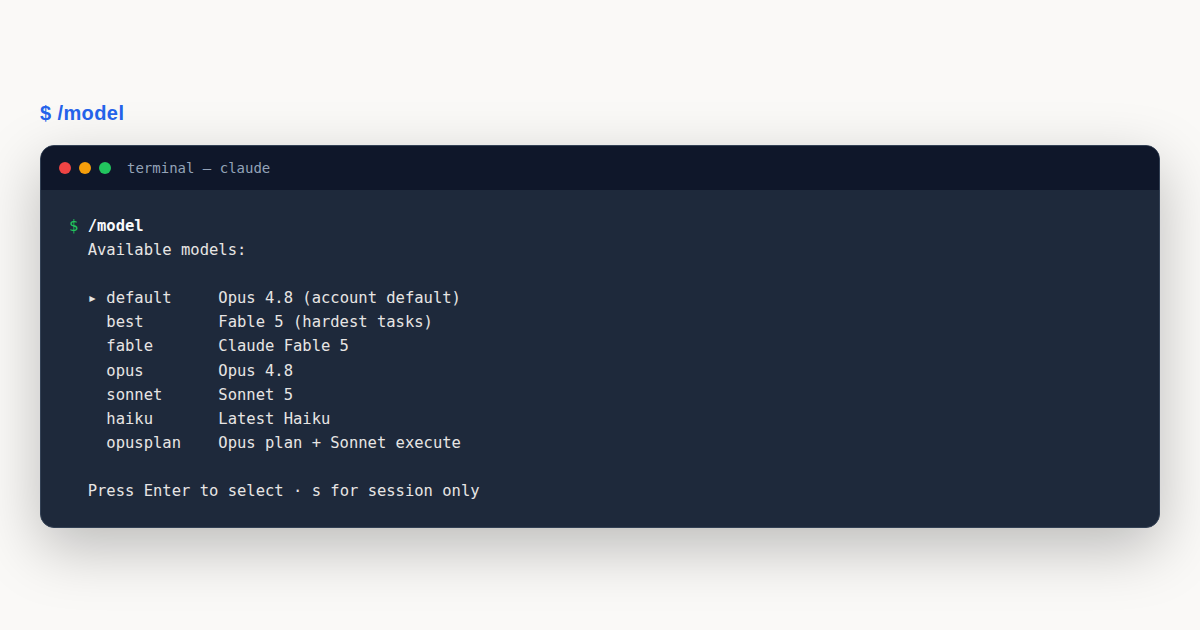
Model config aliases are shorthand names that map to real model versions. They update over time, so sonnet always points to the latest Sonnet release without you tracking version numbers. Here is the complete alias table for your model config:
| Alias | Behavior |
|---|---|
default | Clears any override and reverts to the recommended model for your account type. Not a true alias, but a reset switch. |
best | Uses Fable 5 where your organization has access, otherwise the latest Opus model. |
fable | Uses Claude Fable 5 for the hardest, longest-running tasks. Sustains long autonomous sessions. |
sonnet | Uses the latest Sonnet model for daily coding tasks. Fast, capable, and cost-effective. |
opus | Uses the latest Opus model for complex reasoning, architecture decisions, and difficult debugging. |
haiku | Uses the fast and efficient Haiku model for simple tasks like renames, formatting, and quick lookups. |
sonnet[1m] | Uses Sonnet with a 1 million token context window for long sessions with large codebases. |
opus[1m] | Uses Opus with a 1 million token context window for long sessions that also need deep reasoning. |
opusplan | Uses Opus during plan mode, then switches to Sonnet for execution. A hybrid approach. |
The default alias resolves differently depending on your account. On Max, Team Premium, Enterprise pay-as-you-go, and the Anthropic API, it resolves to the latest Opus. On Pro and Team Standard subscription seats, it resolves to the latest Sonnet. On Amazon Bedrock, Google Cloud Agent Platform, and Microsoft Foundry, it resolves to Sonnet 4.5.
To pin a specific version rather than chasing the alias, use the full model name like claude-opus-4-8 or set the corresponding environment variable. Pinning matters when a new release changes behavior and you need your model config to stay predictable during a critical sprint.
Claude Code Model Selection Command: The Quick Reference
If you came here looking for the claude code model selection command, this card is the answer. Claude Code gives you four ways to set the active model, and the exact syntax differs for each. The table below is the full model config cheat-sheet: pick the row that matches how you want to drive model selection, copy the example, and the prose section that follows explains each one in depth.
Once you have picked a model, the permission side matters just as much: see Claude Code auto mode for how the three permission modes compare before you hand the agent write access.
| Method | Exact syntax | One-line example | Scope |
|---|---|---|---|
/model slash command | /model <alias> | /model opus | Current session; press s to switch without saving, or save as default |
--model startup flag | claude --model <alias> | claude --model sonnet | One launched session only |
ANTHROPIC_MODEL env var | ANTHROPIC_MODEL=<alias> | export ANTHROPIC_MODEL=sonnet | The shell session you launch Claude from; ideal for CI and scripts |
| Settings file | { "model": "<alias>" } | ~/.claude/settings.json | Permanent default across all sessions |
The model config precedence chain
When more than one source sets a model, Claude Code resolves the conflict in a fixed order, and knowing that order is the part of model config that trips people up. The --model flag and the ANTHROPIC_MODEL environment variable win for the session they launch; below them sits the settings file, which is your durable default; and a resumed transcript keeps the model it was using when it was saved unless you override it. The net effect is that model selection is always predictable: the most specific, most temporary source takes priority, and the most durable source is the fallback.
- Use
/modelfor ad-hoc model selection inside a running session. It is the fastest way to switch between Sonnet and Opus mid-task, and it is the command most readers searching for “claude code model selection command” actually want. - Use
--modelwhen you run several terminals side by side with different models. The flag scopes model config to that one launched session and never touches your default, so two windows can run Opus and Sonnet independently. - Use
ANTHROPIC_MODELfor scripts and CI pipelines. It bakes model selection into the environment so every run is reproducible without editing a settings file or passing a flag. - Use the settings file for your everyday default. It is the part of terminal config that survives restarts, and it pairs naturally with the other terminal and theme settings covered later in this guide.
The four methods in the table are the complete model config surface; everything else in this guide, from aliases to effort levels to provider environment variables, builds on one of those four rows. If you only remember one thing about model selection in Claude Code, remember the precedence chain: flag and env var beat settings, and a resumed session keeps its own model unless you say otherwise.
Four Ways to Set Your Model
Claude Code gives you four methods for model selection, listed in priority order. Understanding the model config precedence chain is essential to making the right choice.
Method 1: Interactive /model Command
During a session, type /model with no argument to open the picker, or /model sonnet to switch immediately. Pressing Enter in the picker switches the model and saves it as your default for new sessions. Press s instead to switch for the current session only without changing your default.
# Switch to Opus and save as default
/model opus

# Switch for this session only
# Press s in the picker
Method 2: Startup Flag --model
Launch Claude Code with the --model flag to set the model for that session. This applies only to the session you launch with it. Use this when you want different models in different terminal windows running side by side.
# Start with Opus in this terminal
claude --model opus

# Start with Sonnet in another terminal
claude --model sonnet
Method 3: Environment Variable ANTHROPIC_MODEL
Set ANTHROPIC_MODEL in your shell to control which model Claude Code uses. Like the flag, this applies only to the session you launch with it. It is useful for scripts and CI pipelines where you want reproducible model config without touching settings files.
# Set model for this shell session
export ANTHROPIC_MODEL=sonnet
claude

# One-off override
ANTHROPIC_MODEL=haiku claude
Method 4: Settings File
For a permanent model config, add the model field to your settings JSON. This is the most durable option and survives restarts. You can place it in user settings (~/.claude/settings.json), project settings, or managed settings for enterprise deployments.
{
  "permissions": {
    "allow": ["Bash(npm test:*)"]
  },
  "model": "opus"
}
When multiple sources specify a model, the precedence chain resolves conflicts. The --model flag and ANTHROPIC_MODEL environment variable override settings for the session. Resumed sessions keep the model they were using when the transcript was saved, unless you explicitly override with --model. When project or managed settings set the model, the startup header tells you which settings file was responsible.
Effort Levels: Low to Max
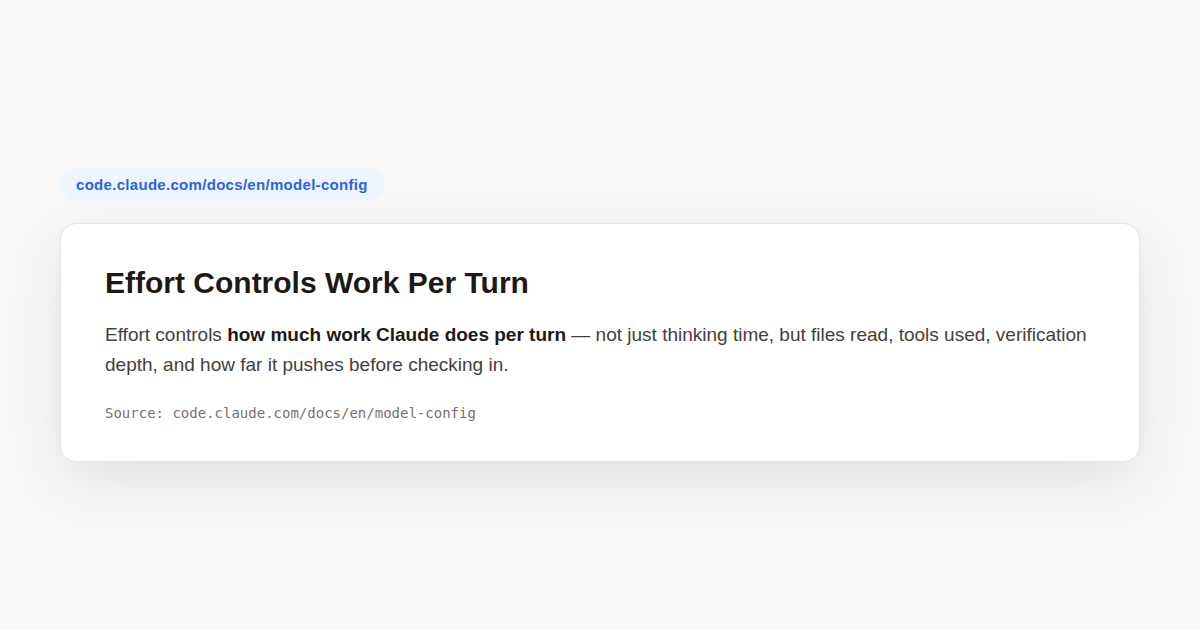
Beyond choosing which model to run, the effort level in your model config controls that controls how much reasoning the model does before answering. Five levels are available, plus a special keyword for one-off deep thinking.
| Level | When to Use |
|---|---|
low | Simple lookups, formatting, one-word answers. Fastest and cheapest. |
medium | Daily coding tasks. Balanced speed and depth. A solid default for most work. |
high | Debugging, multi-file refactors, and design decisions that benefit from more thinking. |
xhigh | Hard problems where high is not enough. Architecture reviews, cross-system debugging. |
max | Maximum reasoning effort. Reserve for the hardest problems in your workflow. |
For your model config effort, set it interactively with /effort to open the picker, or /effort high to set it directly. You can also pass --effort at startup or set effortLevel in your settings JSON for a persistent model config.
# Set effort for this session
/effort high

# Set at startup
claude --effort xhigh
{
"effortLevel": "high"
}Organization admins on Enterprise plans can cap effort levels per custom role. Levels above the cap disappear from the picker, and naming a higher level with --effort or /effort silently clamps to the cap instead of failing. This keeps costs predictable across large teams.
Ultrathink: One-Off Deep Reasoning
Sometimes you want maximum reasoning on a single turn without changing your global effort setting. Type the word ultrathink in your prompt and Claude Code applies maximum effort for that one response. Your effort level snaps back to normal on the next message.
This is one of the most practical model config shortcuts available. You can run at medium effort all day for speed, then drop ultrathink into a single prompt when you hit a wall. No settings changes, no picker navigation, no risk of forgetting to switch back.
ultrathink why is this function returning stale data when the cache invalidation runs before the write commitThe keyword works alongside any model alias. You can combine haiku with ultrathink for a quick model that thinks hard once, or pair it with opus for the deepest single-turn reasoning available.
Fallback Model Chains
When your primary model is overloaded, unavailable, or returns a server error, Claude Code can switch to a fallback model instead of failing your request. This is a critical pillar of a resilient model config strategy. Authentication, billing, and rate-limit errors never trigger a fallback. Only server-side availability problems do.
You define a chain of up to three models. Claude Code tries them in order, showing a notice when it switches. The switch lasts for the current turn only, so your next message tries the primary model first again.
# Set a fallback chain for this session
claude --fallback-model sonnet,haiku
{
"fallbackModel": ["claude-sonnet-5", "claude-haiku-4-5"]
}The --fallback-model flag takes precedence over the fallbackModel setting. Each element accepts a model name or alias, and the word default expands to the default model for your account. Unavailable models and models outside your availableModels allowlist are silently skipped.
Fallback chains shine during peak usage hours. If Opus is overloaded, your session drops to Sonnet for that turn instead of stalling. You stay productive while the primary model recovers, and the switch is transparent so you always know which model handled your request.
Automatic Model Fallback from Fable
Fable 5 is the most capable model in Claude Code, built for tasks larger than a single sitting. It sustains long autonomous sessions, investigates before acting, and verifies its own work more often than smaller models. Select it with /model fable when your workflow demands extended, self-directed work.
Fable 5 is not the default on any account type. Sessions use it only after you choose it. When Fable 5 encounters a request that its safety classifiers flag, often in cybersecurity or biology domains, it triggers an automatic fallback to another model rather than refusing outright. This keeps your session moving on borderline content.
To get the most from Fable 5, describe the outcome you want rather than the steps. Hand it ambiguous problems like root-cause investigations and architecture decisions. Skip reminders to test or check its work, since it verifies itself with less prompting. Give it larger tasks you would normally break into pieces.
API Provider Environment Variables
Your model config shifts depending on which API provider you route through. Claude Code supports four providers beyond the default Anthropic API, each activated by an environment variable.
Amazon Bedrock
Set CLAUDE_CODE_USE_BEDROCK=1 in your model config to route requests through Amazon Bedrock. Model names become inference profile ARNs, and the available versions may lag behind the Anthropic API. On Bedrock, opus resolves to Opus 4.6 and sonnet resolves to Sonnet 4.5.
export CLAUDE_CODE_USE_BEDROCK=1
export AWS_REGION=us-east-1
claude
Google Cloud Vertex AI
Set CLAUDE_CODE_USE_VERTEX=1 in your model config to route through Google Cloud's Agent Platform. Model names follow Google's version naming, and like Bedrock, opus resolves to Opus 4.6 on this provider.
export CLAUDE_CODE_USE_VERTEX=1
export CLOUD_ML_REGION=us-east5
export ANTHROPIC_VERTEX_PROJECT_ID=your-project-id
claude
Microsoft Foundry
Set CLAUDE_CODE_USE_FOUNDRY=1 in your model config to route through Microsoft Azure AI Foundry. Model names become deployment names you configured in your Azure workspace.
export CLAUDE_CODE_USE_FOUNDRY=1
claude
Claude Platform on AWS
This is a separate AWS-native deployment from Bedrock. On this platform, opus resolves to Opus 4.7 and sonnet resolves to Sonnet 4.6, newer than Bedrock's defaults. No special environment variable is needed beyond your authentication setup.
Note that ANTHROPIC_BASE_URL changes where requests are sent, not which model answers them. To route Claude through an LLM gateway, point the base URL at your gateway endpoint. Aliases may resolve differently behind a gateway, so check your provider's model mapping documentation.
Model Pinning Per Provider
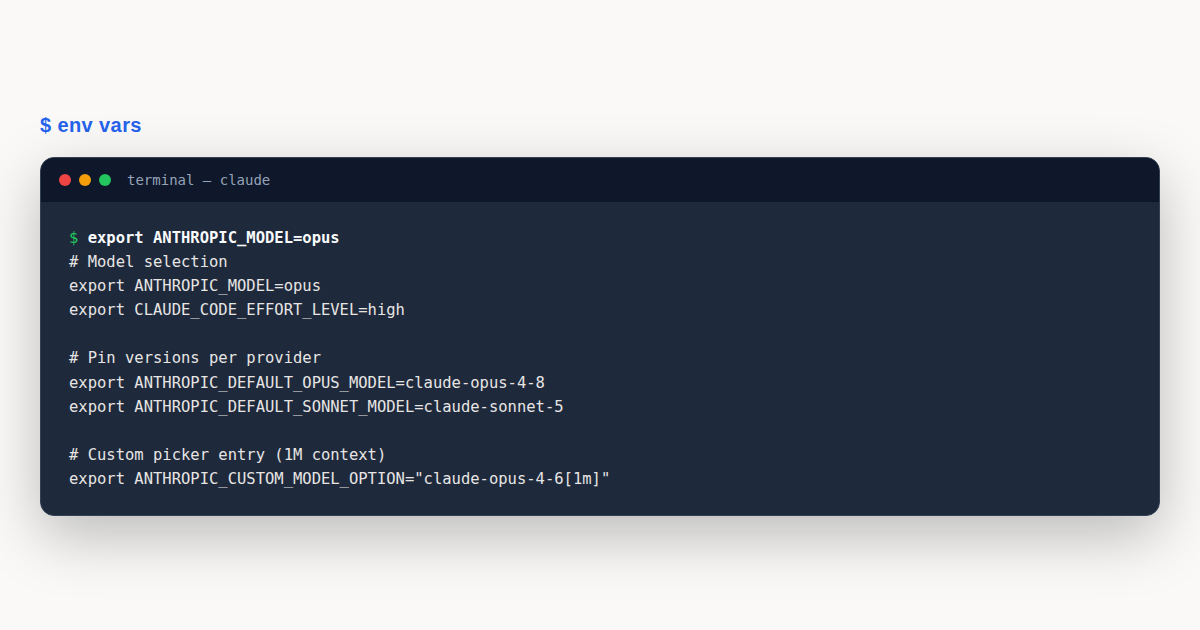
Aliases drift over time as new versions release. When your model config needs stability, pin specific versions using four environment variables that control what each alias resolves to:
# Pin Opus and Sonnet to specific versions
export ANTHROPIC_DEFAULT_OPUS_MODEL=claude-opus-4-6
export ANTHROPIC_DEFAULT_SONNET_MODEL=claude-sonnet-4-5
export ANTHROPIC_DEFAULT_HAIKU_MODEL=claude-haiku-4-5
export ANTHROPIC_DEFAULT_FABLE_MODEL=claude-fable-5
These variables work across providers. On Bedrock, you pin to an inference profile ARN instead of a model name. On Foundry, you pin to a deployment name. The alias system then maps opus to whatever you pinned, giving you a stable model config that survives alias updates.
You can also define these model config pins in your settings JSON under an env block. This keeps the configuration version-controlled alongside your project settings rather than scattered across shell profiles.
{
  "env": {
    "ANTHROPIC_DEFAULT_OPUS_MODEL": "claude-opus-4-6",
    "ANTHROPIC_DEFAULT_SONNET_MODEL": "claude-sonnet-4-5"
  }
}
Restricting Model Selection with availableModels
Enterprise administrators can lock down model selection using the availableModels key in managed or policy settings, restricting which models the model config can resolve to. Entries match a family like sonnet, a version prefix like claude-sonnet-4-5, or a full model ID. The allowlist applies everywhere a user can specify a model: /model, --model, ANTHROPIC_MODEL, the model setting, subagent models, skill models, and fallback chains.
{
  "availableModels": ["sonnet", "haiku"]
}
By itself, availableModels leaves the Default picker option available, which resolves to the runtime default for the account. To extend the allowlist to Default, set enforceAvailableModels: true. Without this, a user who picks Default bypasses the version pin.
{
  "model": "claude-sonnet-4-5",
  "availableModels": ["claude-sonnet-4-5", "haiku"],
  "enforceAvailableModels": true,
  "env": {
    "ANTHROPIC_DEFAULT_SONNET_MODEL": "claude-sonnet-4-5"
  }
}
This combination gives administrators full control. The model key sets the starting model. The allowlist restricts the picker. The enforce flag covers the Default option. The env block pins which version the sonnet alias resolves to. Together they create a model config that users cannot accidentally bypass.
Terminal Setup: Shift+Enter and /terminal-setup
Claude Code works in any terminal without configuration, but getting multiline input right depends on your terminal emulator. The official terminal configuration guide covers edge cases for every major emulator. Pressing Enter submits your message. To add a line break without submitting, press Ctrl+J, or type a backslash followed by Enter. Both work everywhere with no setup.
Shift+Enter also inserts a newline in most terminals, but support varies. Ghostty, Kitty, iTerm2, WezTerm, Warp, Apple Terminal, and Windows Terminal support it out of the box. VS Code, Cursor, Devin Desktop, Alacritty, and Zed need a one-time setup. Run /terminal-setup inside Claude Code and it writes the necessary keybindings into your terminal's configuration file.
# Run this once inside Claude Code
/terminal-setup
For gnome-terminal and JetBrains IDEs like PyCharm and Android Studio, Shift+Enter is not available at all. Use Ctrl+J or the backslash-Enter trick instead. Run /terminal-setup in the host terminal, not inside tmux or screen, since it needs write access to the host configuration.
In VS Code, Cursor, and Devin Desktop, /terminal-setup also disables GPU acceleration in the integrated terminal to prevent garbled text, and adjusts mouse wheel scroll sensitivity for smoother behavior in fullscreen mode. To undo the GPU change, set terminal.integrated.gpuAcceleration back to "auto" and reload the editor window.
Notifications: Terminal Bell and Desktop Alerts
When Claude finishes a task or pauses for a permission prompt, it fires a notification event. Your model config for the notification channel determines how that event reaches you. By default, Claude Code sends a desktop notification only in Ghostty, Kitty, and iTerm2. In other terminals, set preferredNotifChannel to "terminal_bell" to ring the bell instead.
{
  "preferredNotifChannel": "terminal_bell"
}
The desktop notification reaches your local machine even over SSH, so a remote session can still alert you. Ghostty and Kitty forward it to the OS notification center without further setup. iTerm2 requires you to enable forwarding in Settings, then Profiles, then Terminal, then check Notification Center Alerts and enable Send escape sequence-generated alerts.
For a custom sound in any terminal, configure a Notification hook. Hooks run alongside the built-in notification, so they work even in terminals that do not receive desktop alerts. This example plays a system sound on macOS when Claude needs your attention:
{
  "hooks": {
    "Notification": [
      {
        "hooks": [
          {
            "type": "command",
            "command": "afplay /System/Library/Sounds/Glass.aiff"
          }
        ]
      }
    ]
  }
}
tmux Configuration for Claude Code
When Claude Code runs inside tmux, two things break by default. Shift+Enter submits instead of inserting a newline, and desktop notifications never reach the outer terminal. Add three lines to your tmux configuration to fix both issues.
# ~/.tmux.conf
set -g allow-passthrough on
set -s extended-keys on
set -as terminal-features 'xterm*:extkeys'
After editing the file, run tmux source-file ~/.tmux.conf to apply changes to the running server. The allow-passthrough line lets notifications and progress updates reach the outer terminal instead of being swallowed by tmux. The extended-keys lines let tmux distinguish Shift+Enter from plain Enter.
This tmux model config is essential when you run Claude Code in a persistent session. Without passthrough, you lose visibility into long-running tasks. Without extended-keys, multiline prompts become a frustrating exercise in Ctrl+J repetitions. Three lines solve both problems permanently.
Color Themes and Custom JSON Themes
Use the /theme command or the theme picker in /config to choose a Claude Code theme that matches your terminal. The auto option detects your terminal's light or dark background and follows OS appearance changes. Claude Code ships with six built-in presets: dark, light, dark-daltonized, light-daltonized, dark-ansi, and light-ansi.
Beyond the presets, your model config can include custom themes as JSON files in ~/.claude/themes/. The filename without the .json extension becomes the theme slug, and selecting it stores custom:<slug> as your preference. Claude Code watches the directory and reloads on file changes, so edits apply to a running session without a restart.
{
  "name": "Dracula",
  "base": "dark",
  "overrides": {
    "claude": "#bd93f9",
    "error": "#ff5555",
    "success": "#50fa7b"
  }
}
Each custom theme has three optional fields. The name field sets the display label shown in /theme. The base field names the built-in preset the theme starts from. The overrides field is a map of color token names to color values, and tokens not listed fall through to the base preset.
Color values accept hex (#rrggbb or #rgb), rgb(r,g,b), ansi256(n), or ansi:<name> with standard ANSI names like red or cyanBright. Unknown tokens and invalid values are silently ignored, so a typo cannot break rendering.
Color Token Reference
The theme system exposes over 35 tokens across several groups. Text and accent tokens include claude for the primary brand accent, text for default foreground, inverseText for text on colored backgrounds, inactive for secondary text, and suggestion for autocomplete highlights.
Status tokens cover success, error, warning, and merged. Mode indicator tokens include planMode, autoAccept, bashBorder, ide, and fastMode. Diff rendering tokens include diffAdded, diffRemoved, and word-level variants.
Fullscreen mode adds background tokens like userMessageBackground, messageActionsBackground, and selectionBg. Several tokens have paired shimmer variants for the spinner animation, such as claudeShimmer and warningShimmer. Subagents get eight named colors following the pattern <color>_FOR_SUBAGENTS_ONLY.
Fullscreen Rendering and Vim Mode
If the display flickers or scrollback jumps while Claude works, switch to fullscreen rendering. Run /tui fullscreen to switch in the current session with your conversation intact. Fullscreen mode draws to a separate screen the terminal reserves for full-screen apps, which keeps memory flat and adds mouse support for scrolling and selection.
# Switch to fullscreen for this session
/tui fullscreen
To make fullscreen the default, set the CLAUDE_CODE_NO_FLICKER environment variable before starting Claude Code:
CLAUDE_CODE_NO_FLICKER=1 claude{
"env": {
"CLAUDE_CODE_NO_FLICKER": "1"
}
}Vim mode gives you modal editing for the prompt input. Enable it through /config then Editor mode, or by setting editorMode to "vim" in settings. It supports model config NORMAL and VISUAL mode motions like hjkl navigation, v and V selection, and d, c, and y with text objects. Pressing Enter still submits in INSERT mode, so use o or O in NORMAL mode for newlines. For the full keybinding reference, see the companion guide on Claude Code keybindings.
macOS Option Key and Paste Handling
Some Claude Code shortcuts use the Option key on macOS, such as Option+Enter for a newline or Option+P to switch models. Most macOS terminals do not send Option as a modifier by default, so these shortcuts do nothing until you enable it. Look for a setting labeled Use Option as Meta Key in Apple Terminal, or set the Left and Right Option keys to Esc+ in iTerm2. In VS Code, add "terminal.integrated.macOptionIsMeta": true to your settings.
When you paste more than 10,000 characters, Claude Code collapses the input to a [Pasted text] placeholder so the input box stays usable. The full content is still sent when you submit. For very large inputs like entire files or long logs, write the content to a file and ask Claude to read it instead of pasting. This keeps the transcript readable and lets Claude reference the file by path.
A Worked Example
Imagine you are starting a large refactor and need a model config that works of a payment processing service. The codebase spans 50 files and the changes touch authentication, logging, and three separate API endpoints. You need a model config that balances speed, depth, and resilience.
You start by launching Claude Code with a fallback chain. Your primary model is opus for its deep reasoning, with sonnet as the first fallback and haiku as the second. This way, if Opus is overloaded during peak hours, your session drops to Sonnet for that turn instead of stalling.
claude --model opus --fallback-model sonnet,haiku --effort highYou set effort to high because this refactor needs careful reasoning about side effects. For most of the session, Opus at high effort gives you thorough, well-reasoned responses. When you hit a particularly nasty bug in the transaction rollback logic, you type ultrathink in your prompt to push that single turn to maximum reasoning without changing your global effort setting.
Halfway through the session, you realize the planning phase is done and you are now writing boilerplate code across dozens of files. You switch to opusplan mode, which keeps Opus for plan-mode reasoning but drops to Sonnet for execution. Your model config cost per turn drops significantly while the model config quality of complex decisions stays high.
For the terminal side, you have already run /terminal-setup in VS Code, so Shift+Enter inserts newlines for your multiline prompts. You configured a Notification hook that plays a sound when Claude finishes, so you step away to review documentation while the refactor runs. Your tmux config has passthrough enabled, so notifications reach you even inside a persistent session.
When the session stretches past an hour and you start losing track of earlier decisions, you switch to fullscreen mode with /tui fullscreen. Memory stays flat and scrolling becomes smooth. You can search the conversation history, copy code blocks with the mouse, and review the full transcript without fighting your terminal's scrollback buffer.
This is what a well-tuned model config looks like on a real project. The right model for each phase of work, a fallback chain for resilience, effort levels that scale with task difficulty, and a terminal setup that keeps you productive during long sessions.
Model Config: Common Mistakes to Avoid
Even experienced developers trip over the same model config mistakes. Here are the four most common mistakes and how to fix them.
- Pinning an alias instead of a version. Aliases like
sonnetdrift to newer models over time. If you need stability during a critical sprint, pin the full model name likeclaude-sonnet-4-5or setANTHROPIC_DEFAULT_SONNET_MODELso the model config alias always resolves to the version you tested. - Forgetting fallback chains. Without a fallback, an overloaded model stalls your session. Always set
--fallback-model sonnet,haikuor configurefallbackModelin settings. The chain is capped at three models and tries them in order on server errors. - Running tmux without passthrough. Inside tmux, Shift+Enter and desktop notifications break by default. Add
set -g allow-passthrough onand the extended-keys lines to your.tmux.conf, then source the file to apply changes. - Setting effort once and forgetting it. Running at
maxall day wastes tokens on simple tasks. Usemediumas your baseline and reserveultrathinkfor the single turns that need maximum reasoning. Your effort snaps back to normal on the next message.
Model Config: Best Practices
- Use
sonnetas your daily default and switch toopusonly for planning. Sonnet handles most coding tasks faster and cheaper, while Opus earns its keep on architecture decisions and difficult debugging. - Set a fallback chain in every environment. A chain of
sonnet,haikuensures your session survives model outages without manual intervention. The model config fallback switch is per-turn and transparent. - Pin versions with environment variables when stability matters. Set
ANTHROPIC_DEFAULT_OPUS_MODELandANTHROPIC_DEFAULT_SONNET_MODELin your settingsenvblock so alias drift does not surprise your model config mid-sprint. - Run
/terminal-setuponce in every terminal you use regularly. It configures Shift+Enter, clipboard access, and scroll settings in a single step, and existing bindings are left in place. - Keep your model config effort at
mediumand useultrathinkfor one-off deep turns. This balances cost and capability without forcing you to manage effort level changes across every task switch. - Create a custom theme in
~/.claude/themes/if the built-in presets do not match your terminal palette. Start from a base preset and override only the tokens that need changing, likeclaudefor the brand accent anderrorfor failures.
Model Config: Frequently Asked Questions
What is the difference between default and best in model config?
The default alias clears any model override and reverts to the recommended model for your account type. The best alias uses Fable 5 where available, otherwise the latest Opus. Use default to reset and best for maximum capability.
How do I pin a model version so it stops changing?
Set ANTHROPIC_DEFAULT_OPUS_MODEL or ANTHROPIC_DEFAULT_SONNET_MODEL to a full model name like claude-opus-4-6. You can export it in your shell or place it in the env block of your settings JSON for a persistent model config.
Does ultrathink change my effort level permanently?
No. The ultrathink keyword applies maximum effort for a single turn only. Your global effort setting snaps back to normal on the next message. It is designed for one-off deep reasoning without changing your model config.
Why does Shift+Enter submit instead of adding a newline?
Your terminal needs configuration. Run /terminal-setup once inside Claude Code. If you are in tmux, add set -s extended-keys on to your .tmux.conf. As a universal fallback, press Ctrl+J or type a backslash then Enter.
How do fallback model chains handle rate-limit errors?
They do not. Fallback chains trigger only on server-side availability errors like model overloads. Authentication, billing, rate-limit, and request-size errors follow their normal retry and error handling, so your model config fallback chain stays out of those paths.
Model config ties everything together: pick the right alias for each task, set a model config fallback chain for resilience, and tune your terminal so notifications and multiline input work the way you expect. The model config methods for setting a model, the effort level system, and the provider-specific environment variables give you fine-grained control over every session.