Claude Code MCP Servers connect the assistant to external APIs and databases through the Model Context Protocol. They enable real-time access to services like GitHub, databases, and Slack channels, allowing Claude to query live data rather than relying on static context.
The guide covers adding servers via various transport protocols (HTTP, stdio, SSE), managing configurations with different scopes (local, project, user), and using tool search to optimize context usage. It includes practical examples for setting up multi-server configurations and implementing security best practices like environment variable expansion for credentials.
Claude Code MCP Servers connect the assistant to external APIs and databases. Learn transport protocols, tool search, scopes, and multi-server configuration.
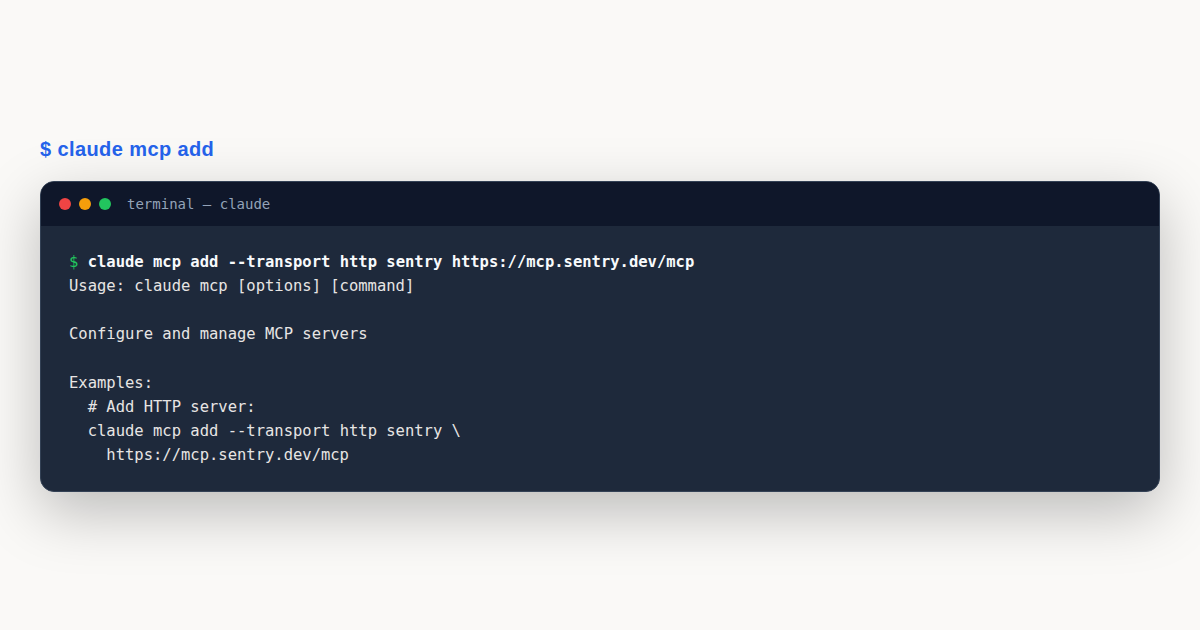
Claude Code MCP Servers: What You’ll Learn
In this guide to Claude Code MCP Servers, you’ll work through practical, hands-on steps with real examples. Claude Code MCP Servers is explained from the ground up so you can apply it immediately in your own projects.
MCP (Model Context Protocol) gives Claude real-time access to external services. Unlike memory files that store static context, MCP connections let Claude query live data: your GitHub issues, production database, Slack channels, or any service with an MCP server. This module covers adding servers, understanding scopes, and using MCP tools effectively.
Adding MCP Servers
The quickest way to add a server is the claude mcp add command. Choose the transport that matches the server type: http for remote servers, stdio for locally-running processes, and sse for older remote servers that haven’t migrated to HTTP yet. Note: SSE is deprecated. Use HTTP servers instead where available. On native Windows you’ll often use cmd /c when launching npx-based stdio servers.
# Add a remote HTTP server
claude mcp add --transport http notion https://mcp.notion.com/mcp

# Add a local Node.js server via stdio
claude mcp add --transport stdio github -- npx @modelcontextprotocol/server-github

# Add with an auth header
claude mcp add --transport http my-api https://api.example.com/mcp   --header "Authorization: Bearer TOKEN"
Manage your servers with claude mcp list, claude mcp get <name>, and claude mcp remove <name>. The /mcp command inside a session shows active connections and triggers OAuth flows for servers that require browser-based authentication. Other useful commands include claude mcp reset-project-choices, claude mcp add-from-claude-desktop, and claude mcp serve when you want Claude Code itself to act as an MCP server.
MCP configurations live in ~/.claude.json (your local user config) or .mcp.json in the project root (shared with the team). The .mcp.json file is checked into git and prompts teammates for approval on first use. Environment variable expansion works in all configuration fields. Use ${VAR:-default} for fallbacks:
{
  "mcpServers": {
    "github": {
      "command": "npx",
      "args": ["@modelcontextprotocol/server-github"],
      "env": {
        "GITHUB_TOKEN": "${GITHUB_TOKEN}"
      }
    }
  }
}
For one-off sessions (quick experiments, CI runs, or sandboxed reproductions), --mcp-config loads MCP servers from JSON files instead of touching your saved config. The flag accepts one or more file paths (space-separated), so a single command can layer a shared config on top of local overrides. Pair it with --strict-mcp-config to ignore every other MCP source for that session, which is the cleanest way to reproduce a bug against a known server set:
# Load a single config file for this session only
claude --mcp-config ./ci-servers.json

# Combine multiple files (space-separated)
claude --mcp-config "./shared-servers.json ./local-overrides.json"

# Reproduce a bug against exactly one server, ignoring user/project config
claude --strict-mcp-config --mcp-config ./repro.json
MCP servers now connect concurrently by default. When you have multiple servers configured (both local stdio servers and remote claude.ai connectors), they initialize in parallel at startup rather than one at a time. This significantly reduces startup latency for projects with several MCP integrations.
Configure MCP server startup timeout using the MCP_TIMEOUT environment variable (for example, MCP_TIMEOUT=10000 claude sets a 10-second timeout).
MCP connectors configured in Claude.ai can also appear automatically in Claude Code. If you set up a server through the web interface, it becomes available in your CLI sessions without separate local configuration. When the same server is configured both locally and via Claude.ai, duplicates are automatically deduplicated so you don’t end up with two connections to the same service.
Scopes and Tool Discovery
MCP configurations have three scopes. Local scope (stored in ~/.claude.json under your project’s key) is private: just you, just this project. Project scope (.mcp.json) is shared with the team via git. User scope (~/.claude.json globally) applies across all your projects.
When the same server is defined at multiple scopes, the local configuration wins. This lets you override a team-wide server config with a local version for testing without affecting anyone else.
MCP prompts appear as slash commands using the pattern /mcp__servername__promptname. MCP resources can be referenced inline with @server:protocol://resource/path. Tool search is enabled by default. MCP tool definitions are deferred and discovered on demand, so only the tools Claude actually uses for a task enter context (it’s off by default only on Vertex AI and when ANTHROPIC_BASE_URL points to a non-first-party proxy).
Override it with the ENABLE_TOOL_SEARCH environment variable: true forces it always on, false loads every definition upfront on every turn, and auto activates tool search only when tool definitions exceed 10% of the context window (auto:N sets a custom percentage). Individual MCP tool descriptions and server instructions are each capped at 2KB to prevent OpenAPI-generated servers from bloating context. A runtime warning appears when an MCP tool’s output exceeds 10,000 tokens. To increase this limit, set the MAX_MCP_OUTPUT_TOKENS environment variable (default 25,000).
To override deferral for a specific server, add alwaysLoad: true to its config. All tools from that server will skip tool-search deferral and always be available in the session.
Subagent-scoped MCP lets you give specific agents access to servers that the rest of the session doesn’t need:
---
name: data-analyst
description: Analyze production data
mcpServers:
  - database
  - playwright:
      type: stdio
      command: npx
      args: ["-y", "@playwright/mcp@latest"]
---
Practical Usage Patterns
With the GitHub MCP connected, you can work with PRs, issues, and commits using natural language. Claude queries the server, gets live data, and responds:
List all open PRs that haven't been reviewed in more than 3 days.
Create an issue for the login timeout bug with medium priority.
/mcp__github__pr_review 456
The database MCP enables natural language queries without writing SQL yourself:
Find all users who placed more than 5 orders in the last 30 days.
What's the average order value by country for Q1 2026?
For complex workflows, multiple MCP servers compose naturally. A daily report workflow might: fetch PR metrics from GitHub MCP, query sales data from the database MCP, write a report using the filesystem MCP, and post it via Slack MCP, all in a single session.
MCP elicitation lets a server pause the workflow and request structured input from the user. When a server needs information it can’t get on its own (an OAuth authorization, a confirmation before a destructive action, or a form with project-specific parameters), it triggers an interactive dialog. The user sees form fields or a browser URL, provides the response, and the server resumes where it left off. The Elicitation and ElicitationResult hooks let you intercept or customize these dialogs programmatically.
Security best practices: always use environment variables for credentials, never commit tokens to git, use read-only tokens when you only need to query data, and limit server access scope to the minimum needed. For enterprise deployments, managed-mcp.json lets administrators enforce an allowlist of permitted servers organization-wide.
Other important MCP capabilities worth knowing: MCP servers can send list_changed notifications to dynamically update their available tools, prompts, and resources without requiring reconnection. If an HTTP or SSE server disconnects mid-session, Claude Code automatically reconnects with exponential backoff, up to five attempts, starting at a one-second delay and doubling each time. For initial connections at startup, the same backoff applies but retries up to three times on transient errors such as a 5xx response, a connection refused, or a timeout (as of v2.1.121).
Channels: Push Events Into a Running Session
Channels are MCP servers that push events into your running session so Claude can react while you’re away from the terminal. Unlike standard MCP servers that Claude queries on demand, a channel delivers messages proactively: a chat bridge from Telegram, a CI webhook, or a monitoring alert. Events only arrive while the session is open.
Three channel plugins are included in the research preview (requires Claude Code v2.1.80 or later): Telegram, Discord, and iMessage. Each is installed as a plugin and configured with your own credentials. Install a channel plugin with /plugin install telegram@claude-code-plugins-official, configure it with the plugin’s /telegram:configure <token> command, then restart with the --channels flag to activate it:
claude --channels plugin:telegram@claude-code-plugins-officialEach channel maintains a sender allowlist. Only IDs you’ve added can push messages. Telegram and Discord use a pairing flow: message your bot, receive a code, then approve it in Claude Code with /telegram:access pair <code> and lock down with /telegram:access policy allowlist. iMessage bypasses pairing for self-chat and lets you add contacts by handle.
Channels require Anthropic authentication (claude.ai or Console API key) and are not available on Bedrock, Vertex AI, or Foundry. Team and Enterprise organizations must enable channels via channelsEnabled in managed settings. They’re blocked by default. Pro and Max users can use channels directly by opting in per session with --channels. Admins can also restrict which plugins are allowed via the allowedChannelPlugins managed setting.
When Claude replies through a channel, the reply appears on the external platform (Telegram, Discord, etc.). Your terminal shows the tool call and confirmation but not the reply text itself.
Real-World MCP Server Examples
Example 1: GitHub MCP Server Configuration
Connect Claude Code to GitHub repositories, issues, and pull requests:
{
  "mcpServers": {
    "github": {
      "command": "npx",
      "args": ["@modelcontextprotocol/server-github"],
      "env": {
        "GITHUB_TOKEN": "${GITHUB_TOKEN}"
      }
    }
  }
}
Or via CLI: claude mcp add --transport http github https://api.github.com/mcp
Example 2: Filesystem MCP Server
Give Claude Code access to files in a specific directory:
{
  "mcpServers": {
    "filesystem": {
      "command": "npx",
      "args": ["@modelcontextprotocol/server-filesystem", "/home/user/projects"]
    }
  }
}
Example 3: Multi-Server Configuration
Configure multiple MCP servers in a single .mcp.json file for project-scoped access:
{
  "mcpServers": {
    "github": {
      "command": "npx",
      "args": ["@modelcontextprotocol/server-github"],
      "env": { "GITHUB_TOKEN": "${GITHUB_TOKEN}" }
    },
    "database": {
      "command": "npx",
      "args": ["@modelcontextprotocol/server-database"],
      "env": { "DATABASE_URL": "${DATABASE_URL}" }
    },
    "slack": {
      "command": "npx",
      "args": ["@modelcontextprotocol/server-slack"],
      "env": { "SLACK_TOKEN": "${SLACK_TOKEN}" }
    }
  }
}
Team members will see an approval prompt when first encountering this project-scoped config.
Understanding the MCP Protocol
Model Context Protocol is the open standard that lets a session talk to external tools and data sources through a uniform interface, and Claude Code MCP servers are the bridge. Instead of every integration reinventing how it exposes its capabilities, an MCP server speaks a defined protocol: it announces its tools, accepts structured calls, and returns structured results. Claude Code MCP servers built on this protocol compose predictably, because they all share the same contract.
The protocol defines three core ideas: resources (data the server can expose), tools (actions the server can perform), and prompts (templates the server can offer). Claude Code MCP servers vary in which of these they emphasize – some expose mostly tools, some expose mostly resources, some offer prompts – and the mix determines what the server is good for. A server that exposes tools lets the session act; a server that exposes resources lets the session read; a server that exposes prompts lets the session follow a structured approach the server provides.
The transport layer matters for Claude Code MCP servers, because it determines where the server runs and how the session reaches it. A stdio transport runs the server as a local subprocess, which is fast and simple but local-only. An HTTP transport runs the server as a network service, which can be shared across sessions and machines but introduces network considerations. Claude Code MCP servers on stdio are the common case for personal tools; servers on HTTP are the common case for shared, team-scale integrations.
Evaluating and Selecting Claude Code MCP Servers
The number of available Claude Code MCP servers is large and growing, so selection is a practical skill. The starting point is the integration you actually need: which external service, which data source, which toolset would meaningfully improve your sessions? Claude Code MCP servers that answer a real integration need earn their place; servers installed because the catalog looked interesting tend to add tool-surface weight without adding value.
The evaluation checklist for a candidate server is short. Does it come from a source you trust, with readable code or a clear maintainer? Does it declare its tools and their permissions? Is it actively maintained, with recent updates and responsive issue handling? Does it have a narrow, clear purpose, or does it try to expose everything about a service? Claude Code MCP servers that pass these checks are worth a trial in a sandboxed session; ones that fail are usually not worth the risk regardless of how appealing the integration sounds.
A trial run is the decisive test. Connecting a Claude Code MCP server in a sandboxed session – where it can read sample data but not touch anything real – shows you what it actually exposes, how its tools behave, and whether the integration is as useful as the description suggests. Servers that perform well in a trial earn a place in the real configuration; servers that disappoint in a trial are cheap to remove, which is the whole point of trying them in a sandbox first.
Authentication and Security for Claude Code MCP Servers
Claude Code MCP servers that connect to authenticated services – a database, a cloud API, an internal system – handle credentials, and how they handle them is a primary security concern. The safe pattern is that the server reads credentials from a secrets manager or environment variable at runtime, never from a committed configuration file. Servers that ask you to put a token in their config file are creating a secret that will eventually be committed, logged, or leaked.
The scope of the credential should be the narrowest that does the job. A Claude Code MCP server that reads from a project tracker does not need admin scope on the whole tracker; a read-only token limits the blast radius if the credential is ever exposed. Servers configured with over-privileged credentials turn a small leak into a large incident, and the narrowing is usually a few minutes of work in the service’s permission settings – a high-leverage security investment.
Treat the server itself as part of the trust boundary. A Claude Code MCP server sees every tool call the session makes through it, and it returns content that becomes part of the session’s reasoning. A server from an untrusted source, or one that fetches external content and blends it into its responses, is a prompt-injection vector. Claude Code MCP servers should come from reviewed sources, and servers that handle untrusted content should treat it as data rather than as instructions the session should follow.
Claude Code MCP Server Lifecycle Management
A server is not installed once and forgotten; it has a lifecycle. The server’s version changes, its tools evolve, and the service it integrates with changes underneath it. Claude Code MCP servers that are installed and never revisited drift from their documented behavior, which produces confusing sessions where a tool that used to work now behaves differently. A periodic review – are the servers still needed, still current, still trusted – keeps the configuration honest.
Updates are the lifecycle stage with the most risk. A server update can change a tool’s signature, add or remove tools, or alter the behavior of existing tools, and any session that depended on the old behavior may break. Claude Code MCP servers that follow semantic versioning give you a signal of risk, and configurations that pin a server to a known version avoid surprise breaks. The tradeoff – pinning forgoes automatic improvements – is worth it for stability, as long as pins are reviewed periodically.
Removal is the lifecycle stage most often skipped. A Claude Code MCP server that is no longer used, that has been superseded, or that integrates with a service you no longer use should be removed, because an installed server is still part of the tool surface and the attack surface even when idle. Periodic pruning – removing servers that nothing has invoked in a review window – keeps the configuration lean and the tool surface focused on what you actually use.
Tool Permission Scoping
A Claude Code MCP server exposes a set of tools, and not every tool needs to be available to every session. Scoping which tools are enabled – turning off the ones a session does not need – keeps the tool surface focused, which helps the model choose among the remaining tools more accurately. Claude Code MCP servers with a large tool menu benefit most from scoping, because the signal-to-noise ratio improves sharply when the irrelevant tools are hidden.
Permissions on the enabled tools are the finer-grained lever. A tool that can delete should be gated more carefully than a tool that can only read; a tool that costs money per call should be gated more carefully than a free one. Claude Code MCP servers whose risky tools are explicitly allowed while their safe tools are freely available strike the right balance: the common path is frictionless, and the risky path requires a deliberate grant.
Deny rules close the gaps that allow rules leave. A deny rule that blocks a specific tool, or a specific argument pattern, is the safety net that lets you grant broad permissions elsewhere with confidence. Claude Code MCP servers in a configuration with well-maintained deny rules are safer to use aggressively, because the deny rules catch the cases the allow rules would otherwise let through. Treat the deny list as carefully as the allow list, and the configuration becomes both powerful and safe.
Composing Multiple Claude Code MCP Servers
Real sessions often draw on several Claude Code MCP servers at once – one for version control, one for issue tracking, one for a knowledge base – and composing them is where the integration model pays off. Each server contributes its specialty, and the session moves among them as the task requires. Claude Code MCP servers that are designed to compose – focused, non-overlapping toolsets – combine cleanly; servers with overlapping tools compete and confuse the model’s choice.
Tool-name collisions are the main composition hazard. Two servers that both expose a search tool, with different behavior, force the model to disambiguate, which it does unreliably. Claude Code MCP servers that namespace their tools – github-search rather than search – compose without ambiguity. When two servers do collide, the fix is usually to disable one server’s overlapping tool, keeping the tool surface unambiguous.
Shared state across servers is rare and worth avoiding. Each Claude Code MCP server typically holds its own state independently, which is what makes composition work – the servers do not need to coordinate. A setup that tries to make servers share state through the session is usually a sign the task belongs in a single, purpose-built server rather than composed from general-purpose ones. Composition is easiest when each server is self-contained.
Performance and Reliability of Claude Code MCP Servers
A Claude Code MCP server that responds slowly adds latency to every tool call that goes through it, and that latency is felt across the session. Servers that cache their data, that respond from local state where possible, and that defer expensive work until it is actually needed keep the session fast. Claude Code MCP servers that call a remote service on every tool call, with no caching, impose a network round-trip on every invocation, which adds up over a session.
Reliability is the other dimension. A Claude Code MCP server that is sometimes unavailable, or that returns errors intermittently, produces a session that sometimes works and sometimes does not, which is the most frustrating failure mode for a user. Servers with retry logic, sensible timeouts, and graceful degradation under partial failure stay reliable; servers without these qualities fail in ways that surface as confusing session behavior rather than clear error messages.
Health checks turn reliability from a guess into a measurement. A Claude Code MCP server that exposes a health endpoint, or that reports its status on connection, lets the session detect unavailability early rather than discovering it through a failed tool call mid-task. Claude Code MCP servers in a production configuration should be monitored for health the way any other dependency is monitored, because an unhealthy server degrades every session that depends on it.
Debugging Claude Code MCP Servers
When a Claude Code MCP server behaves unexpectedly, the debugging path starts with the connection. Confirm the server is reachable, that it started, and that its announced tool list includes the tool you expected. Claude Code MCP servers that fail to start, or that start but expose no tools, usually point at a configuration error in the server’s command or environment, which the startup log reveals.
The next step is the tool call itself. Inspecting the exact arguments the session sent and the exact response the server returned – captured in a verbose log – shows where the divergence from expected behavior occurred. Claude Code MCP servers that log their tool calls and responses are debuggable; servers that run silently are a guessing game, because the failure could be in the request, the server’s logic, or the response handling, with no evidence to distinguish them.
A common debugging finding is a version mismatch between the server and the service it integrates with. The service’s API changed, the Claude Code MCP server was written against the old API, and tool calls now fail or return unexpected shapes. Pinning the server to a version known to work with the current service API, or updating the server to match, resolves it. Servers that are versioned and changelogged make this diagnosis straightforward; servers that are not make it a prolonged mystery.
Distributing Claude Code MCP Server Configurations Across a Team
A Claude Code MCP server configuration that lives on one developer’s machine benefits only that developer. Checking the configuration into a shared location – a project or team configuration file – lets every teammate inherit the same set of servers, which means the integration’s value compounds across the team. Claude Code MCP servers configured this way become a shared asset that onboarding, review, and documentation can all reference.
The configuration should separate the server declaration from the credentials. The declaration – the server’s command, its arguments, its tool scope – is shared and committed. The credentials – the tokens, the keys – stay in each developer’s environment or secrets manager, referenced by the configuration but never committed. Claude Code MCP servers configured with this separation are safe to share widely, because the shared artifact contains no secrets.
Ownership and review apply to shared configurations the way they apply to shared code. Each Claude Code MCP server in a team configuration should have a maintainer who keeps it current, fields reports when it misbehaves, and decides when to update or remove it. Configurations reviewed through the same process as code – proposed, reviewed, merged – stay coherent and trusted, where configurations edited freely by anyone drift toward inconsistency.
Developing Your Own Claude Code MCP Servers
When no existing Claude Code MCP server covers an integration you need, developing your own is the path, and the protocol’s uniformity makes it approachable. The server declares its tools, implements the handlers for each, and speaks the protocol on a chosen transport. Claude Code MCP servers written this way fill the gaps that the public ecosystem has not yet covered, and they are often simpler than expected because the protocol handles the framing.
The design choices for a custom server mirror the evaluation criteria for a public one. Keep the toolset focused on what the integration actually needs to expose; name tools clearly and namespace them if there is any collision risk; handle credentials through the environment, not the config; treat any external content the server returns as data, not instructions. Claude Code MCP servers built with these principles are good citizens in any configuration, including your own.
Testing a custom server follows the same pattern as testing any tool-bearing integration. Capture representative inputs, run them through the server, and check the outputs against expectations. Claude Code MCP servers with a test suite – covering the happy path, the error paths, and the edge cases – are reliable enough to share, which is the threshold for promoting a custom server from a personal tool to something the team or the ecosystem can depend on.
Enterprise Governance of Claude Code MCP Servers
At enterprise scale, Claude Code MCP servers become an integration surface that governance needs to address, and the governance artifacts are familiar: an approved list of servers, a review process for additions, an owner per server, and a periodic audit. Claude Code MCP servers under this regime answer the questions any auditor asks – who approved this, when, is it still needed, what does it touch – which is the basis for defensible adoption.
The review process should weigh the integration’s value against its risk. A server that connects to a sensitive internal system warrants deeper review than one that reads a public API; a server with broad permissions warrants deeper review than one with read-only, narrow scope. Claude Code MCP servers in a tiered review process – light review for low-risk integrations, deep review for high-risk ones – get adopted at a pace that matches their actual risk, which keeps governance from being either a bottleneck or a rubber stamp.
Data flow documentation is the enterprise-specific requirement. For each Claude Code MCP server, the governance record should state what data flows into the server, what flows out, and where each lands. Claude Code MCP servers with documented data flows are auditable for compliance – data residency, retention, access – which is the property that lets an enterprise use them in regulated environments where undocumented data flows would be disqualifying.
Pro Tips
- Always use environment variables for credentials: never hardcode tokens in
.mcp.json. Use${GITHUB_TOKEN}syntax and store values in your shell profile. Commit.mcp.jsonto git with only env var placeholders. - Use read-only tokens when possible: grant minimum permissions needed for each MCP server (least privilege). Rotate tokens monthly. Use OAuth for external services when available.
- Be aware of tool description limits: Claude Code enforces a 2KB cap per MCP server for tool descriptions. When tool descriptions exceed 10% of context, tool search activates automatically to select relevant tools efficiently.
- Monitor MCP output limits: outputs over 10K tokens show a warning; 25K tokens are truncated by default; results over 50K characters persist to disk. Increase the limit with
export MAX_MCP_OUTPUT_TOKENS=*** if needed. - Use
alwaysLoad: truesparingly: mark a server's tools as always available only when needed on every turn. Every always-loaded tool consumes context that could otherwise surface more relevant tools via search.
Hands-On Challenge
Set up a multi-MCP server configuration that integrates external services into your Claude Code workflow.
Task: Build a Multi-Server MCP Configuration
Configure a project with three MCP servers (GitHub, Database, and Filesystem) and use them together in a real workflow.
Steps
- Create a
.mcp.jsonfile in your project root with three MCP server configurations: GitHub, Database (PostgreSQL), and Filesystem. - Use environment variable expansion for all credentials:
"GITHUB_TOKEN": "${GITHUB_TOKEN}". Never hardcode secrets in the config. - Add the servers via CLI as backup:
claude mcp add --transport stdio github -- npx @modelcontextprotocol/server-github - Set up environment variables in your shell profile:
export GITHUB_TOKEN="ghp_...code> andexport DATABASE_URL="postgresql://..." - Run
claude /mcpto verify all three servers connect and show non-zero tool counts. - Test the integration by asking Claude to "List all open PRs and cross-reference them with database records for deployed features."
- Save the
.mcp.jsonto git (with env var placeholders only) so teammates can use the same configuration.
Expected Outcome
All three MCP servers show as connected in /mcp with their tool counts. Claude can seamlessly query GitHub for PRs, check the database for deployment records, and read/write files, all in a single conversation. Teammates who pull the repo and set their own env variables get the same setup instantly.
Hint
Use the
${VAR:-default}syntax for environment variable expansion with fallback defaults. When MCP tool descriptions exceed 10% of context, Claude Code automatically enables tool search. Mark critical servers with"alwaysLoad": trueto skip tool-search deferral. Check the multi-MCP workflow example in the MCP guide for a daily report generation pattern.
Knowledge Check
Test your understanding of Claude Code MCP Servers with these questions:
- What are the supported transport protocols for MCP servers?
A) HTTP (recommended for remote), Stdio (recommended for local), SSE (deprecated) | B) WebSocket (recommended), REST, gRPC | C) TCP, UDP, HTTP | D) Stdio (recommended), HTTP, SSE
Answer: A. HTTP is recommended for remote servers. Stdio is for local processes (most common currently). SSE is deprecated but still supported. - How do you add a GitHub MCP server via CLI?
A)claude mcp install github| B)claude mcp add --transport http github https://api.github.com/mcp| C)claude plugin add github-mcp| D)claude connect github
Answer: B. Useclaude mcp addwith--transportflag, a name, and the server URL. - What happens when MCP tool descriptions exceed 10% of the context window?
A) They are truncated | B) Tool Search auto-enables to dynamically select relevant tools | C) Claude shows an error | D) Extra tools are disabled
Answer: B. MCP Tool Search auto-enables when tools exceed 10% of context. It requires Sonnet 4 or Opus 4 minimum. - How do you use environment variable fallbacks in MCP config?
A)${VAR || "default"}| B)${VAR:-default}| C)${VAR:default}| D)${VAR ? "default"}
Answer: B.${VAR:-default}provides a fallback value if the environment variable is not set. - What happens when a team member first encounters a project-scoped .mcp.json?
A) It loads automatically | B) They get an approval prompt to trust the project’s MCP servers | C) It’s ignored unless they opt in via settings | D) Claude asks the admin to approve
Answer: B. Project-scoped.mcp.jsontriggers a security approval prompt on each team member’s first use to prevent untrusted MCP servers.
Test Your Knowledge
Additional Resources
| Resource | Description |
|---|---|
| Official MCP Documentation | Complete MCP reference for Claude Code |
| MCP Protocol Specification | The full protocol spec for building MCP servers |
| MCP Servers Repository | Official and community MCP server implementations |
| Code Execution with MCP (Anthropic Blog) | Solving context bloat when scaling MCP connections |
| MCPorter | TypeScript runtime and CLI for calling MCP servers without boilerplate |
| Claude Code CLI Reference | CLI commands including claude mcp add, claude mcp list |
Claude Code MCP Servers gives you a solid, repeatable workflow. Bookmark this Claude Code MCP Servers guide and revisit the steps whenever you need them.
A Worked Example: Connecting a GitHub MCP Server
Reading about MCP Servers configuration only gets you so far. The fastest way to understand the moving parts is to wire one up end to end. Here's what actually happens when you add a GitHub MCP server to a real project, from the first command to the point where a teammate clones the repo and hits the same server.
Add the server with a stdio transport. From inside your project directory, run:
claude mcp add --transport stdio github -- npx -y @modelcontextprotocol/server-githubThis launches the GitHub server as a local subprocess over stdio rather than connecting to a remote HTTP or SSE endpoint. Claude Code manages the process lifecycle for you, no separate terminal, no manual restart.
Store the token as an environment variable, never inline. The GitHub server needs a personal access token. Do not paste it directly into the command or into `.mcp.json`. Instead export it in your shell profile or an `.env` loaded before Claude Code starts:
export GITHUB_TOKEN="ghp_xxxxxxxxxxxxxxxxxxxx"Then reference it in the server's env block using expansion syntax, which supports a fallback default if the variable is unset:
{
  "mcpServers": {
    "github": {
      "command": "npx",
      "args": ["-y", "@modelcontextprotocol/server-github"],
      "env": {
        "GITHUB_PERSONAL_ACCESS_TOKEN": "${GITHUB_TOKEN:-}"
      }
    }
  }
}
Know where the config lands. If you ran `claude mcp add` without a `
--scope` flag while inside the repo, Claude Code writes the entry to a project-scoped `.mcp.json` at the repo root, meant to be committed so the whole team shares the same server definitions. If you'd added `--scopelocal`, it would instead land in your personal `~/.claude.json`, visible only to you and never checked into the repo. For a shared GitHub server, project scope is almost always the right call, with the actual secret kept out of the file via `${GITHUB_TOKEN}` expansion.What a teammate sees after pulling. When a colleague pulls the branch containing the new `.mcp.json`, Claude Code detects an unapproved project-scoped server on their next session start and prompts them to approve it before it's allowed to run, a deliberate guardrail so nobody's session silently executes an arbitrary subprocess just because it showed up in git. Once they approve it, Claude Code expands `${GITHUB_TOKEN}` from their own shell environment, so each teammate authenticates with their own token even though the server definition is shared.
Verify the connection. Run the `/mcp` slash command inside a Claude Code session. It lists every configured MCP server, its transport, and connection status. Confirm `github` shows as connected before relying on it.
Adding a second and third server stays lean thanks to tool search. As you add a database server and an internal deploy server alongside GitHub, the combined tool list from all three MCP servers could easily balloon your context. Claude Code's tool search indexes tool descriptions instead of loading every schema up front, so the model discovers and loads only the tools relevant to the current request, keeping a multi-server setup fast even as your roster of MCP Servers grows.
MCP Servers: Common Mistakes to Avoid
These are the mistakes that show up most often when teams start managing MCP Servers across a shared codebase. Most are avoidable with a five-minute config review.
- Hardcoding tokens directly in `.mcp.json` instead of using `${VAR}` expansion. Writing `"GITHUB_PERSONAL_ACCESS_TOKEN": "ghp_realtoken123"` straight into the env block means the secret is now sitting in plain text in a file meant to be committed. Use `${GITHUB_TOKEN}` (or `${GITHUB_TOKEN:-default}` if you want a safe fallback) so the actual value only ever exists in each user's own shell environment.
- Committing a project `.mcp.json` with real secrets instead of placeholders. Even when a token is meant to be shared with `${VAR}` syntax, it's easy to accidentally commit a working copy that still has a literal value from local testing. Diff `.mcp.json` before every commit that touches MCP server config, and keep a `.mcp.json.example` with placeholder values for onboarding.
- Granting a server a broader, write-scoped token when a read-only token would do. A GitHub server used only for searching code and reading issues doesn't need a token with `repo` write and `delete_repo` scopes. Over-scoped credentials turn a compromised or misbehaving MCP server into a much bigger blast radius than the task requires. Mint the narrowest token the server's actual usage justifies.
- Ignoring the 2KB tool-description cap and `MAX_MCP_OUTPUT_TOKENS` truncation on a chatty server. Some MCP servers return large payloads (full database rows, verbose API responses) that get silently truncated once they exceed `MAX_MCP_OUTPUT_TOKENS`, leaving Claude Code working from an incomplete result without an obvious error. Similarly, an overly long tool description gets cut at the 2KB cap, which can drop the exact detail that was supposed to steer tool selection. Keep tool descriptions concise and pair verbose servers with pagination or filtering arguments instead of relying on truncation to bail you out.
Claude Code MCP Servers: Best Practices
- Add only the MCP servers you trust; each one widens what the assistant can reach.
- Use tool search so large servers expose only the tools a task needs.
- Scope servers per project when their credentials differ.
- Prefer official servers for common APIs before building your own.
- Review server permissions the same way you review any third-party integration.
MCP Servers: Frequently Asked Questions
If a tool name exists in local, project, and user scope at once, which MCP server wins?
Claude Code resolves scope precedence local first, then project, then user. A local-scoped server defined in your personal `~/.claude.json` for a specific project overrides a project-scoped `.mcp.json` entry with the same name, which in turn overrides a global user-scoped definition. This lets you override a shared team server temporarily (say, pointing at a staging endpoint) without editing the committed config.
When should an MCP server use SSE, HTTP, or stdio transport?
Use stdio for local subprocess servers you run and manage yourself, like a local database or filesystem tool. It's the simplest and lowest-latency option. Use HTTP for remote MCP Servers exposed as a stateless request/response API. Use SSE when a remote server needs to push streaming or long-lived updates back to the client, such as progress notifications on a slow operation, since it keeps a persistent connection open rather than requiring the client to poll.
What does tool search do automatically, and when should I set `alwaysLoad: true`?
With `ENABLE_TOOL_SEARCH` on, Claude Code indexes tool descriptions from every configured server instead of injecting every tool schema into context up front, then loads only the tools relevant to the current request as it works. Mark a tool `alwaysLoad: true` when it's small and used constantly enough that the lookup overhead isn't worth it. For everything else, letting tool search handle discovery keeps sessions with many MCP Servers from bloating context.
What is MCP elicitation, and how do the Elicitation hooks fit in?
Elicitation lets an MCP server pause mid-call and ask the user a follow-up question, for example, a deploy server confirming which environment to target before it acts. Claude Code exposes this through `Elicitation` and `ElicitationResult` hooks, so you can intercept the prompt, log it, or auto-respond in automated contexts instead of leaving every elicitation waiting on interactive input.
How are Channels (Telegram, Discord, iMessage) different from a standard MCP server?
A standard MCP server extends what Claude Code can do inside a session: tools, resources, prompts. Channels are push-oriented: once `channelsEnabled` and a channel like Telegram or Discord are paired, Claude Code can notify you or resume a conversation from an external message, rather than only responding to requests you initiate locally. They ride on the same connection and reconnection machinery as other MCP Servers, including `list_changed` notifications and backoff on reconnect, but the interaction model is inverted. The server can reach you, not just the other way around.