Plan mode is the Claude Code permission mode that lets Claude read your codebase and propose a change without touching a single file. It researches, explores and writes a plan. You approve, refine or reject before any edit lands, which is the cheapest place to catch a wrong approach.
Plan mode: What You’ll Learn
This guide covers what plan mode blocks and what it still allows, the four ways to answer when Claude presents a plan, and how auto mode quietly changes the rules while you are planning. You will also see how to make plan mode the default for a project and where it saves real money.
Every behaviour described here was checked against Claude Code v2.1.220 and the official Claude Code permission-mode documentation rather than written from memory, because several of these rules changed within the last few point releases.
What plan mode actually blocks
Plan mode tells Claude to research and propose changes without making them. Claude reads files, runs shell commands to explore, and writes a plan. It does not edit your source. Edits stay blocked until you approve the plan.
The distinction that matters is between reading and writing. Reading is unrestricted: Claude can open any file in your working directory, follow imports, and build an understanding of how the pieces connect. Writing is what waits.
There is one exception worth knowing before you rely on this as a safety guarantee. In sessions that were started with bypass permissions available, Claude Code does not enforce plan mode’s blocks at all. Claude is still instructed to plan rather than edit, but a file edit or shell command it attempts during planning will simply run. If you use bypass permissions, plan mode becomes advice rather than a fence.
Entering and leaving plan mode
There are three ways in. During a session, press Shift+Tab to cycle through the modes. The cycle runs default, then acceptEdits, then plan. The status bar shows ⏸ plan mode on while it is active.
For a single question, prefix your prompt with /plan. That plans one turn without changing the session mode, which is useful when you are mostly editing and want one considered answer.
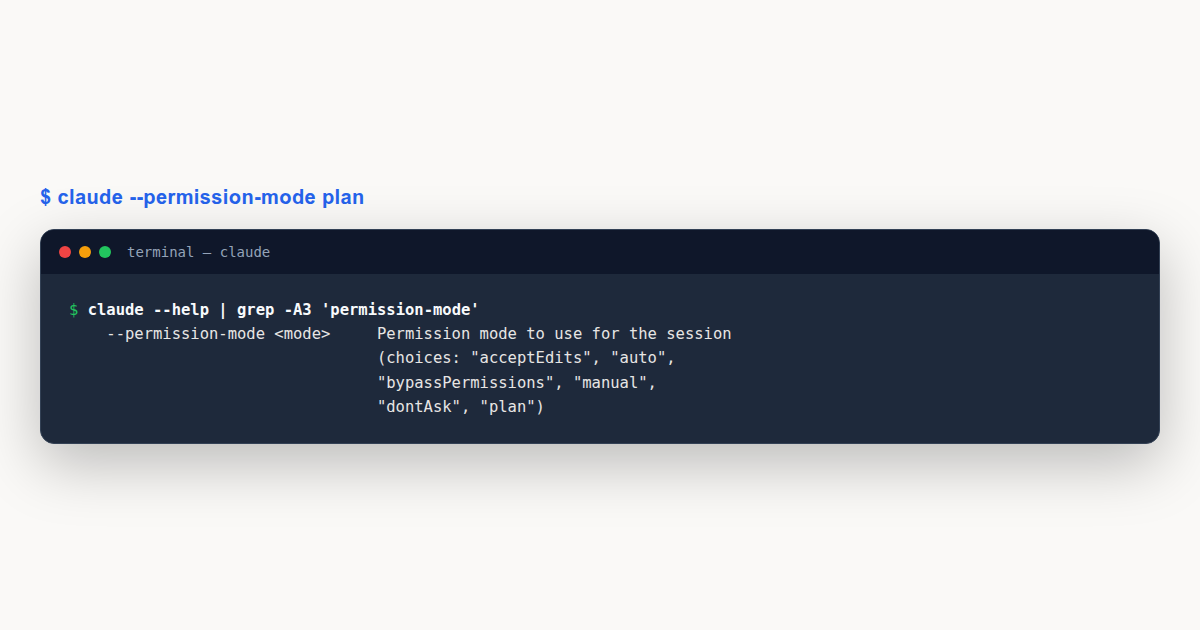
To start a whole session in it, pass the flag:
claude --permission-mode planLeaving is simpler than people expect. Press Shift+Tab again to exit plan mode without approving anything. The plan is discarded and you are back in the previous mode.
The four ways to answer a plan
When the plan is ready, Claude presents it and asks how to proceed. The options are not interchangeable, and picking the wrong one is the most common way people lose the benefit of having planned at all.
- Yes, and use auto mode approves the plan and starts in auto mode. When auto mode is unavailable this option reads Yes, auto-accept edits instead. Sessions started with bypass permissions show Yes, and bypass permissions.
- Yes, manually approve edits approves the plan but keeps you reviewing each edit individually. This is the conservative choice for unfamiliar code.
- No, refine with Ultraplan sends the plan to a browser-based review session rather than executing it.
- No, keep planning stays in plan mode so you can tell Claude what to change about the approach.
Approving a plan exits plan mode and switches the session to whichever mode the option described. Claude then starts editing. To plan again afterwards, cycle back with Shift+Tab or prefix your next prompt with /plan.
Two smaller behaviours are easy to miss. Press Ctrl+G to open the proposed plan in your default text editor and change it directly before Claude proceeds. Accepting a plan also names the session from the plan content automatically, unless you already set a name with --name or /rename.
How auto mode changes planning
This is the part that surprises people who learned plan mode on an older release. When auto mode is available and the useAutoModeDuringPlan setting is on, which it is by default, a classifier reviews shell commands during planning instead of prompting you. Approved commands run and rejected ones are blocked.
Without that combination, commands outside the built-in read-only set prompt for approval during planning. So the same keystrokes produce a noticeably different experience depending on whether your account has auto mode.
The practical effect is that planning feels smoother on accounts with auto mode, because exploratory commands like listing a directory or running a test to see current behaviour stop interrupting you. It also means the classifier is making judgement calls on your behalf during a phase you may have assumed was purely read-only.
Protected paths behave differently while planning
Claude Code keeps a list of paths that are never auto-approved, guarding repository state and Claude’s own configuration against accidental corruption. The list includes .git, .vscode, .idea, .husky, .devcontainer and .claude, plus files like .gitconfig, .bashrc, .zshrc, .npmrc, .mcp.json and .claude.json.
In plan mode, writes to those paths prompt. In sessions with bypass permissions available they are allowed instead, and with auto mode available during planning they route to the classifier. Three different outcomes from the same keystroke, decided by session configuration you set before you started.
One detail catches people out. Adding an entry such as Edit(.claude/**) to permissions.allow in your settings does not pre-approve protected-path writes. The safety check runs before Claude Code evaluates allow rules, so the per-mode outcome above is unchanged.
Setting plan mode as a project default
If a repository is one where you always want to think before editing, make it the default. Add this to .claude/settings.json in the project:
{
  "permissions": {
    "defaultMode": "plan"
  }
}
The same key works in ~/.claude/settings.json for a user-wide default. Note that this is not symmetric with auto mode: Claude Code deliberately ignores defaultMode: "auto" in project and local settings so a repository cannot grant itself auto mode, but plan has no such restriction because it only ever reduces what Claude may do.
That asymmetry is a good argument for checking a plan-mode default into a shared repository. It is a safe instruction to hand a teammate, and it cannot be used to escalate anyone’s permissions.
Plan mode outside the terminal
The mode exists in every Claude Code surface, but how you reach it differs. In VS Code, click the mode indicator at the bottom of the prompt box, or set claudeCode.initialPermissionMode. The JetBrains plugin runs Claude Code in the IDE terminal, so Shift+Tab works exactly as it does in the CLI.
In the desktop app, use the mode selector next to the send button. There is a behaviour here worth remembering: a mode you pick in the selector is normally remembered per folder and takes precedence over defaultMode, but plan is the exception. Picking plan applies to the current session only.
On the web and mobile, use the mode dropdown next to the prompt box. Cloud sessions offer accept edits, plan and auto. Remote Control sessions on your own machine offer manual, accept edits and plan.
Where plan mode saves money
Anthropic’s own cost guidance lists plan mode as a token-reduction technique, and the reasoning is worth stating plainly. The expensive failure in agentic coding is not a long conversation. It is a long conversation that went the wrong direction and has to be redone.
Planning front-loads the cheap part. Claude reads, reasons and proposes while producing comparatively little output, and you catch a wrong approach at the point where correcting it costs one message instead of twenty edits and a revert.
There is a real counterweight to know about. If you use agent teams, teammates running in plan mode use roughly seven times more tokens than a standard session, because each teammate maintains its own context window and runs as a separate Claude instance. Plan mode is a saving in a single session and a multiplier across a team of agents.
Handing a plan to the cloud with ultraplan
The third approve option, refine with Ultraplan, deserves more than a passing mention because it changes where the review happens. Ultraplan hands the planning task from your local CLI to a Claude Code on the web session that runs in plan mode. Claude drafts in the cloud while your terminal stays free.
The reason to want this is the review surface. In a terminal you reply to a whole plan. In the browser view you can highlight a passage and comment on it, react to individual sections, and jump around with an outline sidebar. For a plan that spans several subsystems, commenting on the one paragraph that is wrong beats describing it in prose.
There are three ways in. Run /ultraplan followed by your prompt, include the word ultraplan anywhere in a normal prompt, or pick the refine option when a local plan is presented. The first two open a confirmation dialog; the third skips it because choosing it was already the confirmation.
While the cloud session works, your prompt input shows a status indicator. ◇ ultraplan means Claude is researching and drafting. ◇ ultraplan needs your input means there is a clarifying question waiting in the browser. ◆ ultraplan ready means the plan is ready to review.
When the plan looks right you choose where it runs. Approving in the browser can implement it in the same cloud session and open a pull request, or teleport it back to your waiting terminal. The terminal path then offers three options of its own: implement in the current conversation, start a new session with only the plan as context, or cancel and save the plan to a file for later.
Two constraints are worth knowing before you build a habit around it. Ultraplan is in research preview, so behaviour may change. It also requires a Claude Code on the web account and a GitHub repository, and because it runs on Anthropic’s cloud it is unavailable on Amazon Bedrock, Google Cloud’s Agent Platform and Microsoft Foundry.
Planning inside subagents and headless runs
Plan mode interacts with subagents in a way that is easy to get wrong. When a subagent runs, any permissionMode in its frontmatter is ignored. The parent session’s rules apply instead, and the classifier checks the subagent’s work at three separate points.
It evaluates the delegated task description before the subagent starts, so a dangerous-looking task is blocked at spawn time. It checks each action while the subagent runs. When the subagent finishes, it reviews the full action history and prepends a security warning to the results if anything looks off.
The practical consequence is that you cannot make a subagent plan-only by writing it into that agent’s definition. If you want planning behaviour from delegated work, the parent session is where the mode has to be set.
Non-interactive runs are the other place expectations diverge. The --permission-mode flag works with -p for headless sessions, so you can script a planning pass. But there is no user present to answer an approval prompt, which means a plan that would normally wait for your decision has nowhere to go. Headless planning is useful for producing a plan as an artefact to read later, not for gating an automated pipeline.
How plan mode compares to the other permission modes
Plan mode only makes sense next to its neighbours. Claude Code ships six modes, and each trades convenience against oversight differently.
default, labelled Manual in the interface, runs reads only and asks about everything else. acceptEdits adds file edits and common filesystem commands such as mkdir, touch, mv and cp. plan allows reads plus classifier-approved commands when auto mode is available. auto runs everything with background safety checks. dontAsk runs only pre-approved tools and auto-denies the rest, which suits CI. bypassPermissions runs everything.
Not all of them appear in the Shift+Tab cycle. Auto shows up when your account qualifies. Bypass permissions only appears if you started the session with an enabling flag. dontAsk never appears in the cycle at all and has to be set with --permission-mode dontAsk.
The useful mental model is that plan is the only mode defined by what it produces rather than what it permits. The others describe how often Claude stops to ask. Plan describes an artefact you are meant to read.
A Worked Example: planning a risky refactor
Take a concrete case. You want to change how a payment service handles retries, in a codebase you did not write. Editing straight away means Claude makes assumptions about the retry semantics, and you find out whether those assumptions were right after the diff exists.
Start instead with claude --permission-mode plan and ask for the change you want. Claude reads the service, the tests around it and anything that calls into it. If your account has auto mode with useAutoModeDuringPlan on, it can also run the existing test suite to see current behaviour without asking you to approve each command.
What comes back is a plan: which files change, in what order, what the risk is. This is the moment the technique pays. You are reading a paragraph rather than a diff, and mistakes are obvious at that altitude. If the plan says it will change the retry ceiling in a shared config, you can see that the blast radius is wrong before anything is written.
Press Ctrl+G to open the plan in your editor and correct the approach directly. Then choose Yes, manually approve edits rather than auto mode, because this is unfamiliar payment code and you want to see each change as it lands.
If the plan is close but not right, pick No, keep planning and say what is wrong. You stay in plan mode, nothing has been written, and the next plan is better. Two or three rounds of this still costs less than one wrong implementation.
Plan mode: Common Mistakes to Avoid
Most of the trouble with plan mode comes from assuming it is stricter than it is, or from picking the wrong exit.
- Treating it as a security boundary. In sessions with bypass permissions available, plan mode’s blocks are not enforced at all. It is a workflow tool, not a sandbox. Use permission rules or a container for that.
- Approving into auto mode by reflex. The first option in the approve list starts auto mode. On unfamiliar or sensitive code, the second option keeps you reviewing each edit and is usually the right pick.
- Rewriting the prompt instead of the plan. When a plan is nearly right,
Ctrl+Gand edit it directly, or choose keep planning. Starting over from a fresh prompt throws away the exploration you already paid for. - Expecting a plan-mode default to survive everywhere. In the desktop app, picking plan applies to the current session only, unlike other modes which are remembered per folder.
Plan mode: Best Practices
- Reach for it when the approach is uncertain, not when the edit is. A one-line fix does not need a plan. A change touching three subsystems does.
- Put your effort into the plan, not the prompt. A carefully reviewed plan lets Claude execute in one pass, which is where the token saving actually comes from.
- Check the settings file location. Project settings work for a plan default, and unlike auto mode there is no restriction on setting it there, so it is safe to commit for a team.
- Match the exit to the risk. Approve into auto mode for routine work you understand, and into manual approval for anything unfamiliar, security-adjacent or hard to revert.
- Do not rely on it in bypass sessions. If bypass permissions are available, treat any planning output as a suggestion Claude may act on rather than a guarantee it will not.
Plan mode: Frequently Asked Questions
How do I enter plan mode in Claude Code?
Press Shift+Tab during a session to cycle default, then acceptEdits, then plan. You can also prefix a single prompt with /plan for one turn, or start a whole session with claude --permission-mode plan. The status bar shows ⏸ plan mode on while it is active.
Can Claude still edit files in plan mode?
Not in a normal session. Reads and exploration run, but edits stay blocked until you approve the plan. The exception is a session started with bypass permissions available, where plan mode’s blocks are not enforced and an attempted edit will run.
What is the difference between plan mode and planning mode?
They are the same feature. The official name is plan mode, set with --permission-mode plan, and planning mode is the phrase people commonly use for it. There is no separate setting.
How do I leave plan mode without running the plan?
Press Shift+Tab again. That exits plan mode without approving anything, and the proposed plan is discarded. Approving a plan is the only path that switches the session into an editing mode.
Does plan mode reduce token usage?
In a single session, yes, because catching a wrong approach in a plan is far cheaper than reverting an implementation. Across agent teams the opposite applies: teammates running in plan mode use roughly seven times more tokens than a standard session, since each runs as a separate instance with its own context window.
Plan mode is the cheapest checkpoint Claude Code gives you. It costs one extra step and it moves the moment of correction from after the diff to before it, which on unfamiliar code is the difference between a conversation and a revert. Set it as a project default where the code is risky, and match your approve option to how much you trust the plan.