Docker architecture is a split between three programs: the docker CLI you type into, the dockerd daemon that obeys over a REST API, and a registry that supplies the layered, read-only images containers are made from.
- Client and daemon are separate programs meeting over a REST API, a UNIX socket or a network link; one client can point at several daemons.
- An image stacks read-only layers a union filesystem, OverlayFS most often, presents as one; a rebuild redoes only layers whose instructions changed.
- A container is an isolated process on the host’s kernel: namespaces fence its view, cgroups cap memory and CPU.
- The default bridge network keeps a container’s ports visible to the host yet invisible beyond it, until
-ppublishes one. - Delete a container and its writable layer dies with it; volumes carry on. containerd and runc create the container inside the Engine.
Every docker run you have ever typed drove three cooperating programs, and two of them never touched your screen. This article is the written half of the Whiteboard Architect episode Inside Docker’s Architecture: Client, Daemon, Engine.
The cast: a client, a daemon, and an Engine
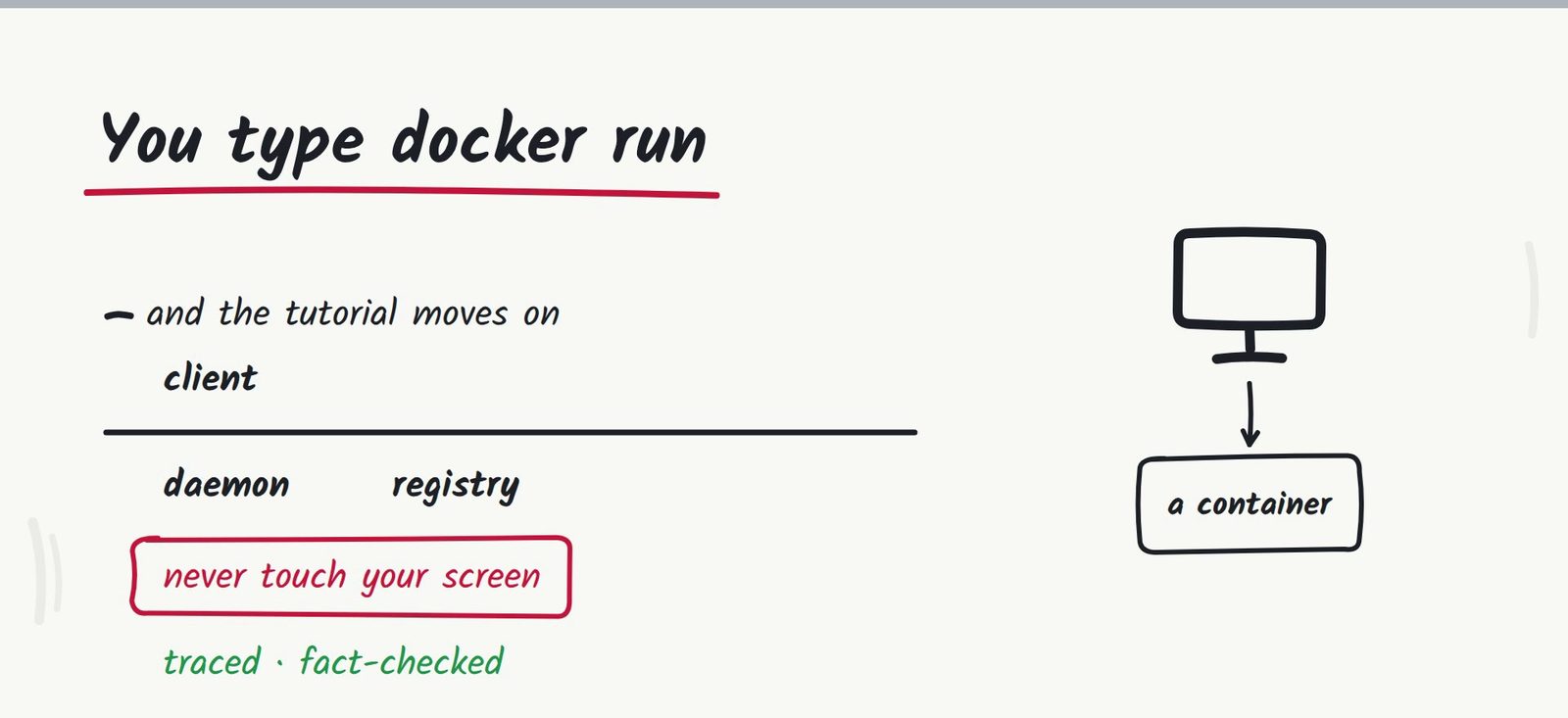
Each command you type sets up a two-program exchange. The docker CLI is a slim client; the heavy end is dockerd, the Docker daemon, which takes its instructions through a REST API carried on a UNIX socket or a network connection and owns every object in the system: images, containers, networks, volumes.
Wrap the three pieces together, client plus API plus daemon, and the bundle is the Docker Engine. The pairing is loose by design: a single client can drive any number of daemons, running beside it or reached over the network. Docker’s own overview documents this client-server split as the shape of the whole system.
For most people Docker Desktop is where the cast first appears: one package for Mac, Windows, or Linux, bundling the daemon, the client, Compose, Kubernetes, Content Trust and the Credential Helper. Daemons cooperate sideways, too: group them into a swarm and the members behave as a single virtual engine, coordinating over the Docker API.
Can the docker client drive a daemon on another machine?
Yes, and the design makes that ordinary. The client never assumes the daemon sits on the same box: every command it issues is an API request, and an API request travels just as well down a local UNIX socket or across a network to a daemon installed elsewhere. That is also why one client can juggle several daemons at once, some local, some remote, without any of them knowing about the others.
The same openness explains how a swarm holds together. Each member daemon speaks the same Docker API to its peers, so a set of independent daemons can present itself to you as one virtual Engine. And it explains the daemon’s job description: because every object in the system, every image, container, network and volume, answers to the daemon that received the API call, the daemon you point at is the machine whose objects you are managing.
The registry shelf: repositories, tags, and Docker Hub’s defaults
A registry is where images wait between machines; Docker Hub is simply the shelf Docker consults first. Within any registry, a repository gathers a set of container images, and its tags act as version labels: pick a different tag, receive a different build of the same application.
Docker reaches for Hub when an image name carries no registry in front of it. The curated Official Images program covers Ubuntu, Python, Alpine, Node and MySQL, nginx ranks among its most-used entries, and Verified Publisher images stand next to those. Outside Hub sit Amazon ECR and Google Artifact Registry as cloud hosts, plus whatever private registry an organization runs internally. Two verbs govern the shelf: pushing uploads an image, pulling or running fetches one back.
Images: read-only templates stacked from layers
The image itself is a read-only template holding instructions for creating a container, typically leaning on a parent image: Ubuntu underneath, your application above. Running docker build -t myimage . turns your own instructions into an image: give -t a plain name, or name:tag for the version label, and read the trailing dot as the build context, the set of files the build works from.
Every Dockerfile instruction contributes one layer, and a union filesystem, OverlayFS being the common one, presents the whole stack to the container as a single filesystem. Edit one instruction and build again: only the layers whose instructions changed rebuild; the rest are reused untouched. That reuse keeps images small and repeated builds quick.
Why do only the changed layers rebuild?
Because the layer stack is the unit of reuse. Each instruction in your Dockerfile produces exactly one layer, and a layer that already exists can be mounted again instead of being reconstructed. Change one line in the middle of a Dockerfile and the layers below it still match what the Engine built last time, so the rebuild begins at your edit rather than at FROM.
OverlayFS is what makes the stack usable: it overlays the layers, read-only ones from the image plus the writable one a running container adds, and shows the container a single filesystem with no visible seams. The payoff is arithmetic: an unchanged layer costs nothing to reuse on the next build, which is why adding a line near the top of a Dockerfile feels so much more expensive than adding one near the bottom.
Containers on the host: processes with a private view
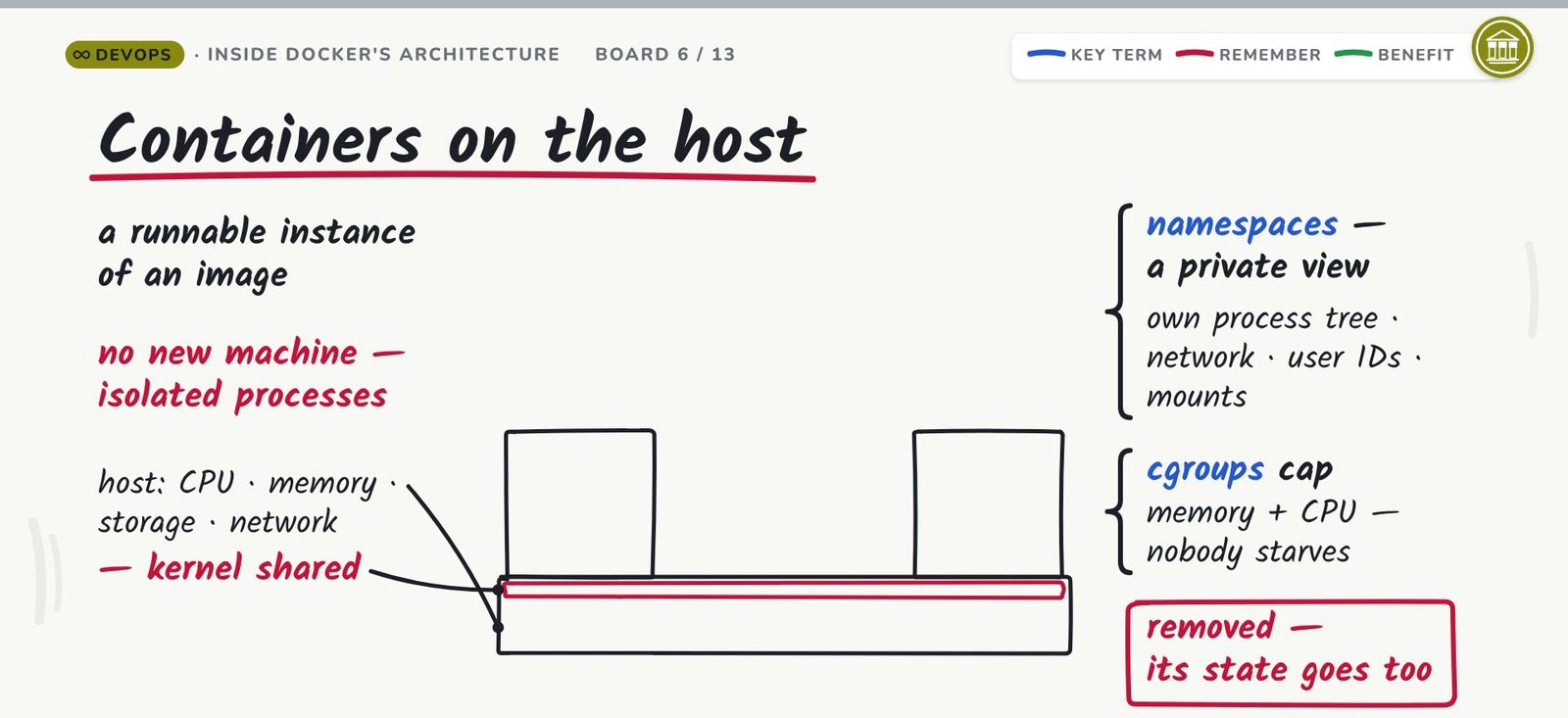
A container is what you get when an image runs: one runnable instance of it, shaped by the flags on the command that started it. Nothing new boots. Each container is a group of processes kept apart from the rest of the system, living on a host, your laptop, a virtual machine, or a cloud instance, that provides CPU, memory, storage and networking while sharing its kernel with every container on it.
Two kernel facilities draw the boundary. Namespaces fence off what a container can see, handing it a private process tree, network, user IDs and mounts; cgroups cap its memory and CPU so one busy container cannot starve its neighbors. Delete the container, and whatever state it held outside persistent storage goes with it.
What do namespaces and cgroups each control?
Namespaces answer “what can this process see”: the container gets its own view of the process tree, its own network, its own user IDs and its own mounts, so processes inside the boundary cannot even perceive most of what the host carries. Cgroups answer “how much can this process use”: memory and CPU get hard ceilings per container, so a container that starts looping cannot drain the machine out from under its neighbors.
Visibility rules make two containers on one host behave like separate machines to each other; consumption rules make them safe roommates on shared hardware.
Networks, by driver: bridge is only the default
Every Docker network belongs to a driver, and the default pick keeps each container private. A freshly started Engine brings up one built-in bridge network, and any container started with no --network flag lands on it. There, a port is reachable from the host itself but not from beyond it, until you publish it with -p, which opens it to the outside world.
| Driver | What it does | When it applies |
|---|---|---|
bridge | Connects containers to the built-in default network; a port needs -p before anything outside the host can reach it | Every container started with no --network flag |
host | Drops the network boundary; the container uses the host’s networking stack, each port landing straight on the host’s interface | Trading isolation for directness |
overlay | Connects containers into one distributed network across several daemon hosts | Swarms, where containers on different hosts must talk |
macvlan | Assigns every container interface a dedicated MAC address, so containers appear as physical devices on the network | Workloads that expect to see real machines |
None of those drivers delivers complete isolation; the host driver gives up the most.
Docker architecture in one command, traced
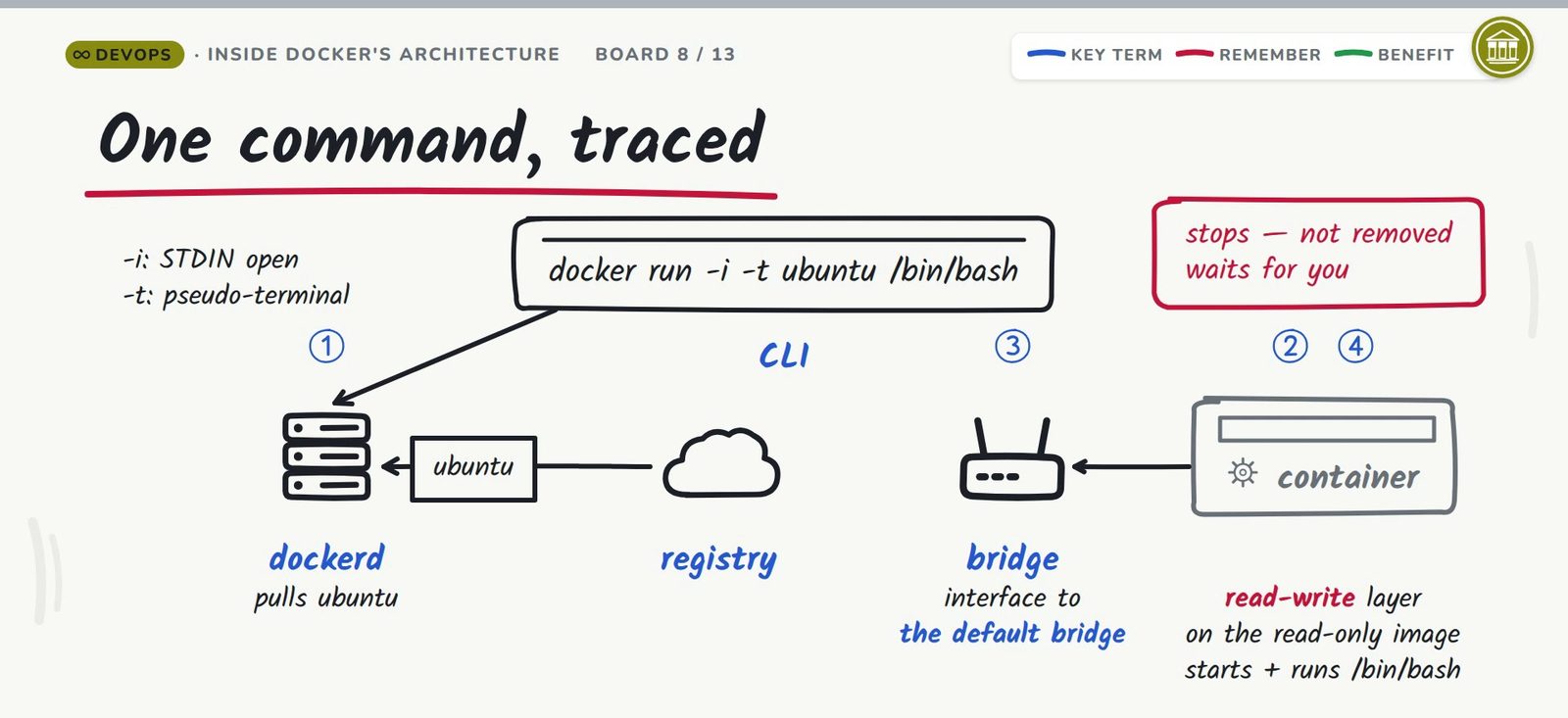
Watch every actor work in one line: docker run -i -t ubuntu /bin/bash. If the image is missing locally, the daemon fetches ubuntu from a registry first. Next it creates the container: a read-write filesystem goes on as the last layer above the read-only image, and an interface is wired to the default bridge. Then the container starts and runs /bin/bash, with -i holding STDIN open and -t attaching a pseudo-terminal.
The ending is what people misremember. Exit bash and the container stops without being deleted; it waits on the host, stopped, until you remove it. A stopped container still holds its writable layer.
Three more commands cover most daily work. docker run -d -p 80:80 nginx starts the official nginx image detached, meaning in the background, mapping the host’s port 80 onto the container’s 80. docker ps reports the running containers; add -a and the stopped ones appear too, including that abandoned bash shell. docker exec -it my-container bash drops you into a shell inside a container that is already running: the daemon starts an extra command alongside the process living there.
Under the hood: containerd and runc
A second stack operates inside the Engine: dockerd, then containerd, then runc. containerd began as the core container runtime split out of Docker Engine, where it manages the full lifecycle of a container; one level below, it does lifecycle management for runc, the Open Container Initiative’s reference runtime.
The dates explain how the pieces ended up together. Docker, CoreOS and the maintainers of appc founded the OCI in June 2015; runc’s first release followed that July. The CNCF later received containerd as a donation and graduated it in February 2019. Kubernetes speaks to containerd directly today, over CRI; the dockershim bridge went away in v1.24, removing one extra hop.
Why did Kubernetes drop dockershim?
Because the bridge duplicated a translation the runtime could already do. Kubernetes issues instructions through the Container Runtime Interface, and containerd implements that interface natively, so steering those instructions through dockerd’s shim first meant an extra component in the path, one more thing to maintain and patch between releases. Removing dockershim in v1.24 let the two ends talk directly and eliminated the extra hop.
containerd had been a graduated CNCF project for years by then, its CRI implementation was no longer a side branch, and the shim’s remaining job had shrunk with every release in between.
Gotchas: what the writable layer does not do
Correction one saves data: nothing written to the writable layer survives, though plenty of older material claims the opposite. Whatever a running container writes lands in a read-write filesystem that Docker provisions as the last layer, and deleting the container deletes that layer. Docker’s overview puts it flatly: non-persistent state in that layer disappears with the container.
Volumes are what survive. Docker’s storage documentation states it as “a volume’s contents exist outside the lifecycle of a given container”, and Wikipedia’s Docker article records the same behavior on container deletion. A volume is managed by Docker rather than any one container, outlives each of them, and several containers can mount the same volume at once.
Correction two: a volume is not an object sitting in S3 or Azure. It is a directory taken from the host’s own filesystem, mounted for the container exactly as AWS’s ECS storage guide describes, and reaching cloud or other remote storage means installing a volume driver, which is a plugin. The storage options, in the order to reach for them:
| Storage option | What it is for |
|---|---|
| Volumes | The default choice: storage Docker manages, outliving each container and shareable between several |
| Bind mounts | Pointing a container at specific files that already exist on the host |
tmpfs | Data held in memory only, never written to disk |
| Volume drivers | Reaching past the host’s filesystem into cloud or remote storage, as plugins |
Correction three: the host network driver performs no tunneling and adds no encryption, whatever older tutorials tell you. Its single action is dropping the network boundary, leaving the container on the host’s own networking with every port mapped straight onto the host interface. Docker’s networking documentation describes the effect as to “remove network isolation between the container and the Docker host”, and AWS’s task networking guide says host mode “uses the host’s network which bypasses Docker’s built-in virtual network”.
Is the host network driver a secure tunnel?
No, and it was never built to be one. The driver’s one move is removing the network boundary between container and host: the container’s ports land straight on the host’s interface, with no virtual network in between and no tunnel or encryption around the traffic. Older tutorials that present host networking as a hiding place, or as a protected pipe, are describing a mechanism Docker never shipped.
The point of the driver is directness: one fewer network layer between the container’s traffic and the host’s interface, bought at the price of the isolation every other driver keeps. That trade is sometimes worth making, but it should be a decision you make on purpose, with the ports and the exposure both in view.
What does Docker Desktop actually install?
One package, several cooperating pieces: the daemon, the client, Compose, Kubernetes, Content Trust and the Credential Helper, all present after a single install on Mac, Windows, or Linux. That bundle is why the cast of this article feels invisible to most people: instead of assembling a client here and a daemon there, you run one installer and every actor is suddenly local, talking over the same REST API described above.
The packaging changes nothing about the architecture, it just ships the whole cast together. The daemon inside the bundle can still join a swarm, the client inside it can still point at daemons elsewhere, and the objects still belong to whichever daemon answers the API call.
In short
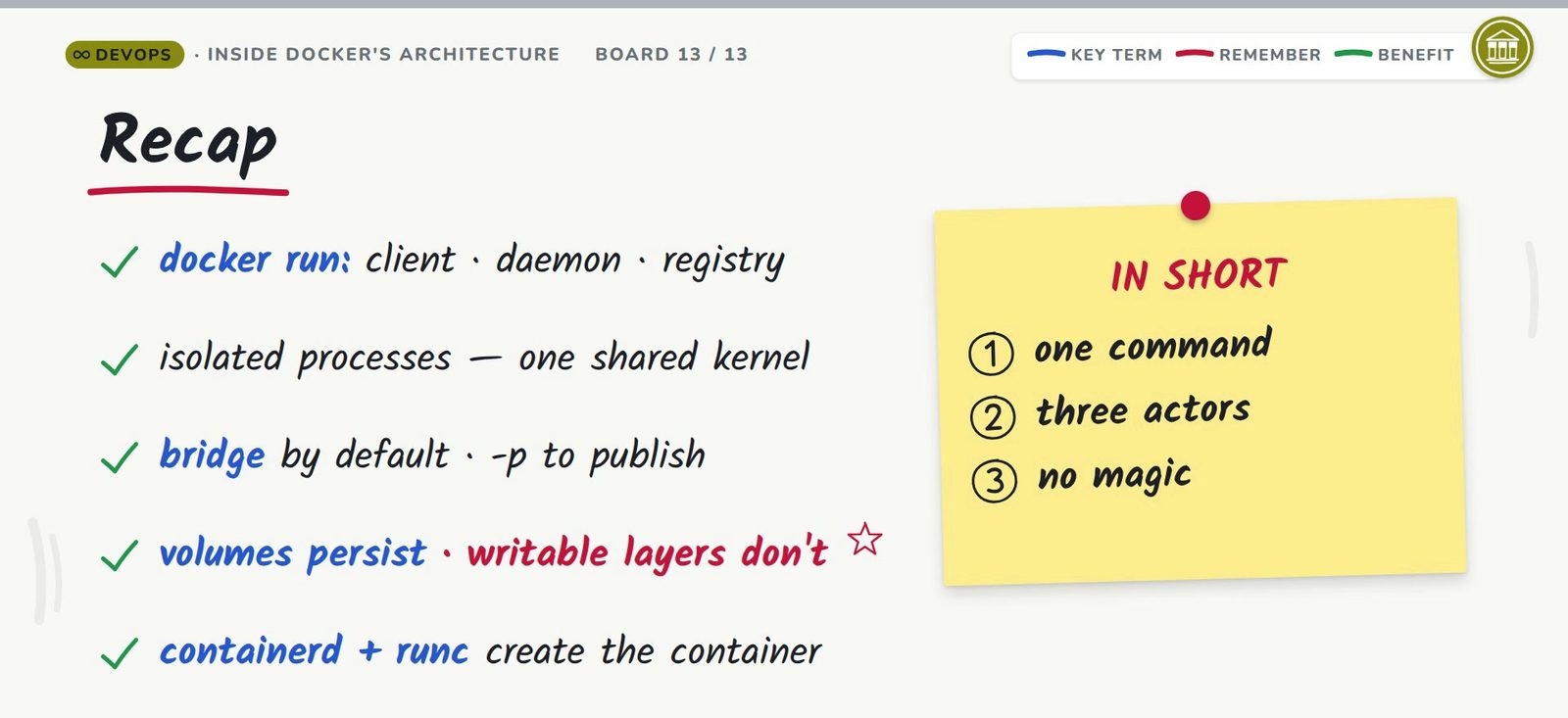
One command, three actors: a slim client taking your keystrokes, a daemon doing the work, a registry supplying the layered read-only image. Their product is an isolated process on the host’s shared kernel, fenced by namespaces, throttled by cgroups, parked on the default bridge with every port closed until -p publishes one. Volumes are the storage that persists; writable layers are not. Creation itself, inside the Engine, is containerd and runc’s job.
Continue learning
- Containers vs Virtual Machines: The Problem Docker Solves: the first lesson in this Docker series, the problem containers solve versus virtual machines.
- Docker Interview Questions: the question bank where this episode’s material shows up, from images to networking.
- Why DevOps? Where the Traditional SDLC Breaks: the earlier Whiteboard Architect companion on why this toolchain exists.